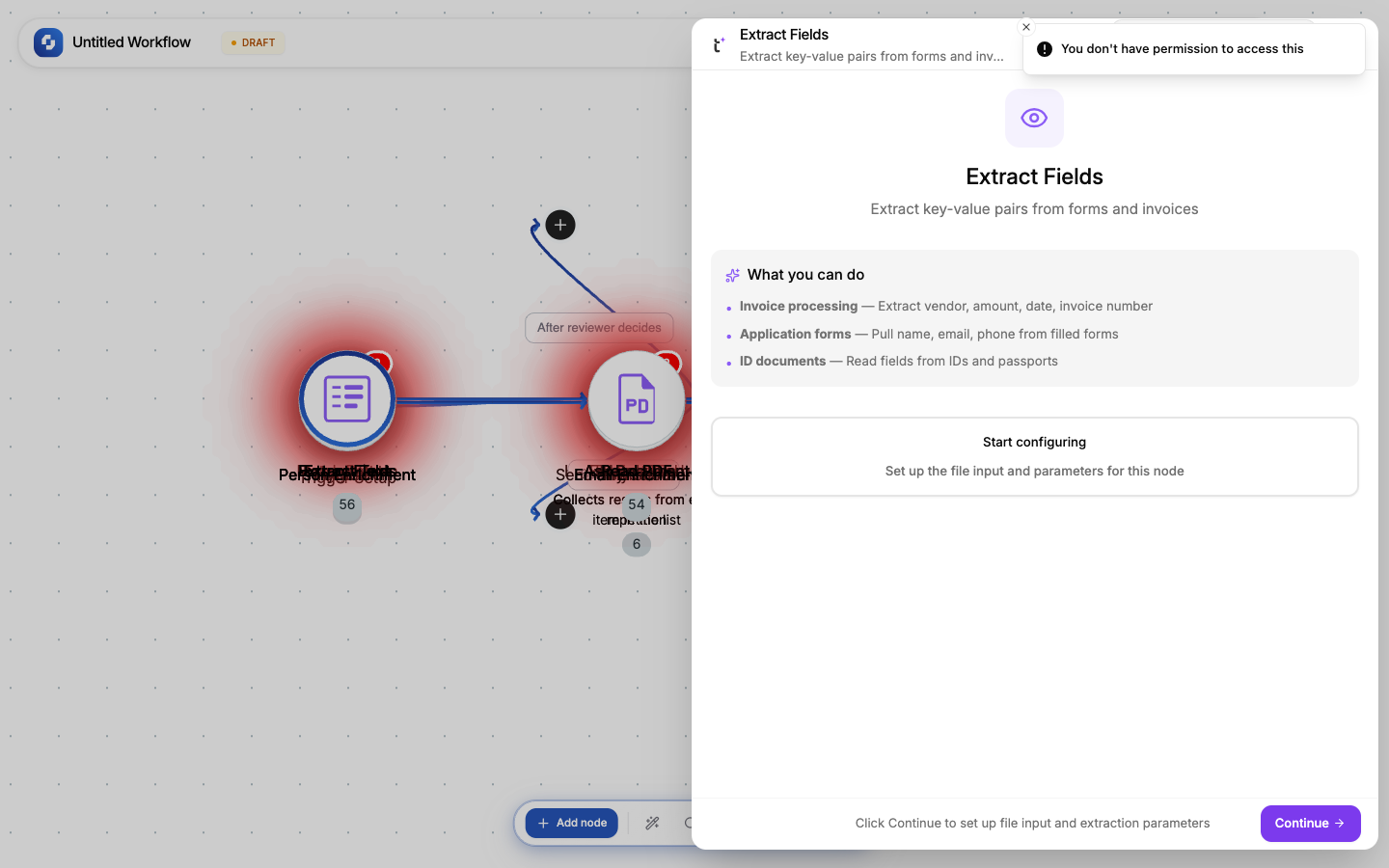
Extract Fields
The Extract Fields node uses AI vision to pull specific named values from images and documents. Unlike OCR (which extracts all text) or Table Extract (which finds tabular data), Extract Fields targets the exact fields you define: invoice number, due date, total amount, customer name.
When to use Extract Fields vs. other Vision nodes
| Node | Use when |
|---|---|
| OCR | You need all text from an image |
| Read PDF | You need all text from a PDF |
| Table Extract | The data is in a table/grid format |
| Extract Fields | You need specific named values from a document |
| Ask Document | You want to ask a natural language question about a document |
Configuration
| Field | Type | Required | Description |
|---|---|---|---|
| Source | Select | Yes | Where the image/document comes from: URL, File upload output, or previous node |
| Source URL/path | FX formula | Yes | The image URL or file path. Supports variables. |
| Fields to extract | Field list | Yes | Define each field you want to pull (see below) |
| Document type | Select | No | Hint: Invoice, Receipt, ID card, Contract, Custom. Helps AI accuracy. |
Defining fields
Each field has:
| Property | Description |
|---|---|
| Field name | The key in the output (e.g., invoice_number) |
| Field label | Human-readable description (e.g., "Invoice Number" or "The invoice/PO number at the top of the document") |
| Field type | Expected type: Text, Number, Date, Currency, Boolean |
| Required | Whether extraction should fail if this field isn't found |
Example field configuration for invoices
| Field name | Label | Type | Required |
|---|---|---|---|
invoice_number | Invoice or PO number | Text | Yes |
date | Invoice date | Date | Yes |
due_date | Payment due date | Date | No |
vendor_name | Vendor / company name | Text | Yes |
total_amount | Total amount due | Currency | Yes |
tax_amount | Tax / VAT amount | Currency | No |
line_items_count | Number of line items | Number | No |
payment_terms | Payment terms (Net 30, etc.) | Text | No |
Output variables
{{extract_fields.result.invoice_number}}   → "INV-2024-0847"
{{extract_fields.result.date}}             → "2024-03-15"
{{extract_fields.result.total_amount}}     → 4250.00
{{extract_fields.result.vendor_name}}      → "Acme Supplies Inc."
{{extract_fields.confidence}}              → 0.94
Each field is available at {{extract_fields.result.<field_name>}}. The confidence score (0-1) indicates how confident the AI is about the overall extraction.
Common patterns
Invoice processing
Email Trigger (new email with attachment) → Extract Fields (invoice fields) →
  If-Else (total > 5000?) →
    Yes: HITL (manager approval) → Create Record (accounting DB)
    No: Create Record (accounting DB) → Send Email (auto-approved notification)
Receipt expense tracking
Form Submission (receipt upload) → Extract Fields (vendor, amount, date, category) →
  Google Sheets (append to expense report) → If-Else (amount > policy limit?) →
    Yes: Slack (notify manager for approval)
ID verification
Form Submission (ID upload) → Extract Fields (name, DOB, ID number, expiry) →
  TinyGPT (verify name matches form submission) → If-Else (match?) →
    Yes: Update Record (verified = true)
    No: Send Email (verification failed, please re-upload)
Tips for better extraction
| Tip | Why |
|---|---|
| Set the document type | Gives the AI context about where to look for fields |
| Write descriptive labels | "Total amount including tax at the bottom" is better than "Total" |
| Use specific field types | Currency type handles $ symbols and decimal parsing automatically |
| Mark truly required fields | Don't mark everything required; some documents may lack optional fields |
| Provide multiple name variants | "Invoice Number / PO Number / Reference Number" in the label handles different document formats |
Extraction accuracy depends on document quality. Blurry photos, handwritten text, or unusual layouts may produce lower confidence scores. Always validate extracted data for high-stakes workflows (financial, legal) with a Human-in-the-Loop node.
Extract Fields uses at least 1 credit each time it runs. Check Monitor → Credit Usage after a test run to see what it used.