Actions
Actions are the steps your workflow performs after a trigger fires. They're the "do this" part of your automation: send a Slack message, call an API, update a database, classify text with AI, or run an action from any of 458 integrations.
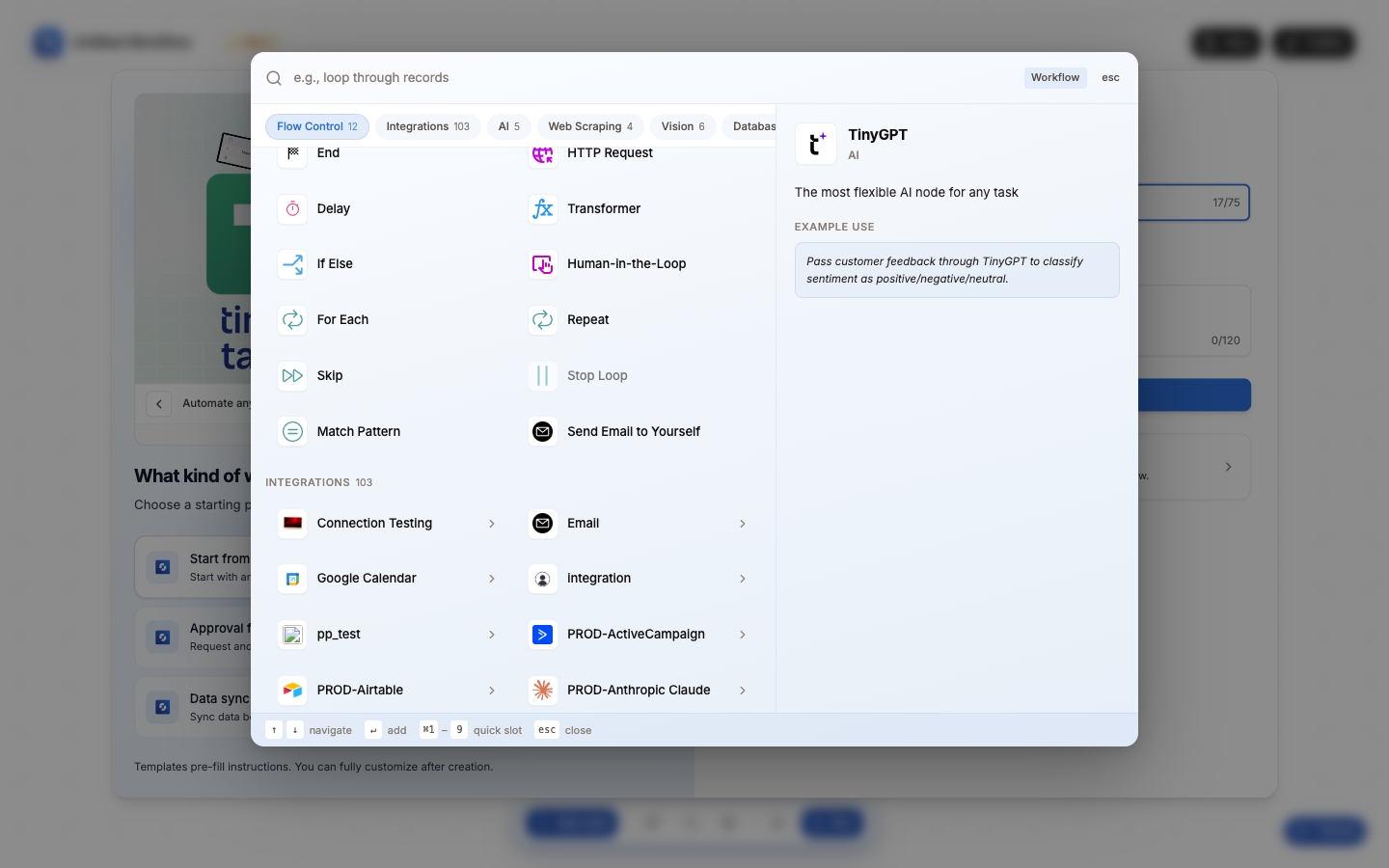
Action categories
| Category | Count | What they do | Examples |
|---|---|---|---|
| Flow Control | 12 | Logic, branching, HTTP calls, data transformation | HTTP Request, Transformer, If-Else, For Each, Delay, HITL |
| Integrations | 458 apps | Pre-built connectors to third-party apps | Slack, Gmail, Google Sheets, HubSpot, Stripe, Salesforce |
| AI | 5 | AI-powered analysis, writing, search | TinyGPT, Tiny Scout, Tiny Composer, Tiny Search |
| Web Scraping | 5 | Extract data from web pages | Scrape Page, Crawl Site, Extract Data, Map URLs, Web Search |
| Vision | 6 | Process images, PDFs, documents | OCR, Read PDF, Extract Table, Extract Fields, Ask Document |
| Database | 6+ | CRUD operations on databases | Create, Find, Update, Delete (PostgreSQL, MySQL, TinyTables) |
How actions work
- A trigger fires and produces output data (e.g., a webhook payload with
{ email, name, message }) - The first action receives that data and can reference any field using variables:
{{trigger.body.email}} - The action executes: it does something (sends a message, calls an API, inserts a row)
- The action produces output, which becomes available to the next node as new variables
- This chain continues until the workflow ends or an End node stops it
Every node in the chain can reference output from ANY previous node, not just the immediately preceding one.
The 3-tab pattern
Most action nodes have 3 configuration tabs:
| Tab | What you do |
|---|---|
| Initialise | Choose a template or start from scratch. Templates pre-fill common configurations. |
| Configure | Set the actual parameters: URL, fields, conditions, prompts, etc. This is where the work happens. |
| Test | Run the action with real data and see the output. Required for most nodes before saving. |
Some simpler nodes (Delay, Skip, End, Log) skip the Initialise tab and go straight to Configure.
Adding an action to your workflow
- Click + Add node in the bottom bar (or after completing the previous node's setup)
- Browse by category tabs (Flow Control, Integrations, AI, etc.) or type in the search bar
- Click the node to add it; the Initialise tab opens immediately
- Choose a template or start from scratch → Continue
- Fill in the Configure tab fields
- Run the Test (required for most nodes)
- Click Save to commit the node to the canvas
Connections
Most integration actions require a connection: an authorized account for the app you're connecting to. For example:
- Slack actions need a Slack workspace connection
- Gmail actions need a Google account connection
- Stripe actions need a Stripe API key
Set up connections in Build → App Authorizations before using integration nodes. Once connected, the same connection is available to all workflows in your workspace.
Credits
Every action uses at least 1 credit each time it runs, and some use more:
| Category | Credits each time the step runs |
|---|---|
| Most actions (flow control, integrations, database, Send Email to Yourself) | 1 |
| AI agent steps and Tiny Search | 10 |
| TinyGPT, Tiny GPT Writer, Tiny GPT Researcher | At least 1 |
| Web Scraping | 2 (Crawl Site: 2 per page; Web Search: 2 per result) |
| Vision | At least 1 |
| Enrichment | 10 (Person Enrichment: 20) |
A step that errors still uses 1 credit. See Credits & Usage for the full list.
Monitor usage in Monitor → Credit Usage.
The "What happens next?" panel appears after saving each node. It shows the Add Node panel so you can immediately add the next step. This makes building workflows feel like a guided conversation rather than manual canvas editing.
Test runs execute real actions: they send real emails, call real APIs, and modify real data. Use test accounts and channels during development.