Vision & Document Processing
TinyVision nodes process images, PDFs, and documents to extract text, tables, form fields, and structured data. No OCR setup required; everything runs with AI.
All TinyVision nodes: Color = Purple (#8B5CF6), have test modules.
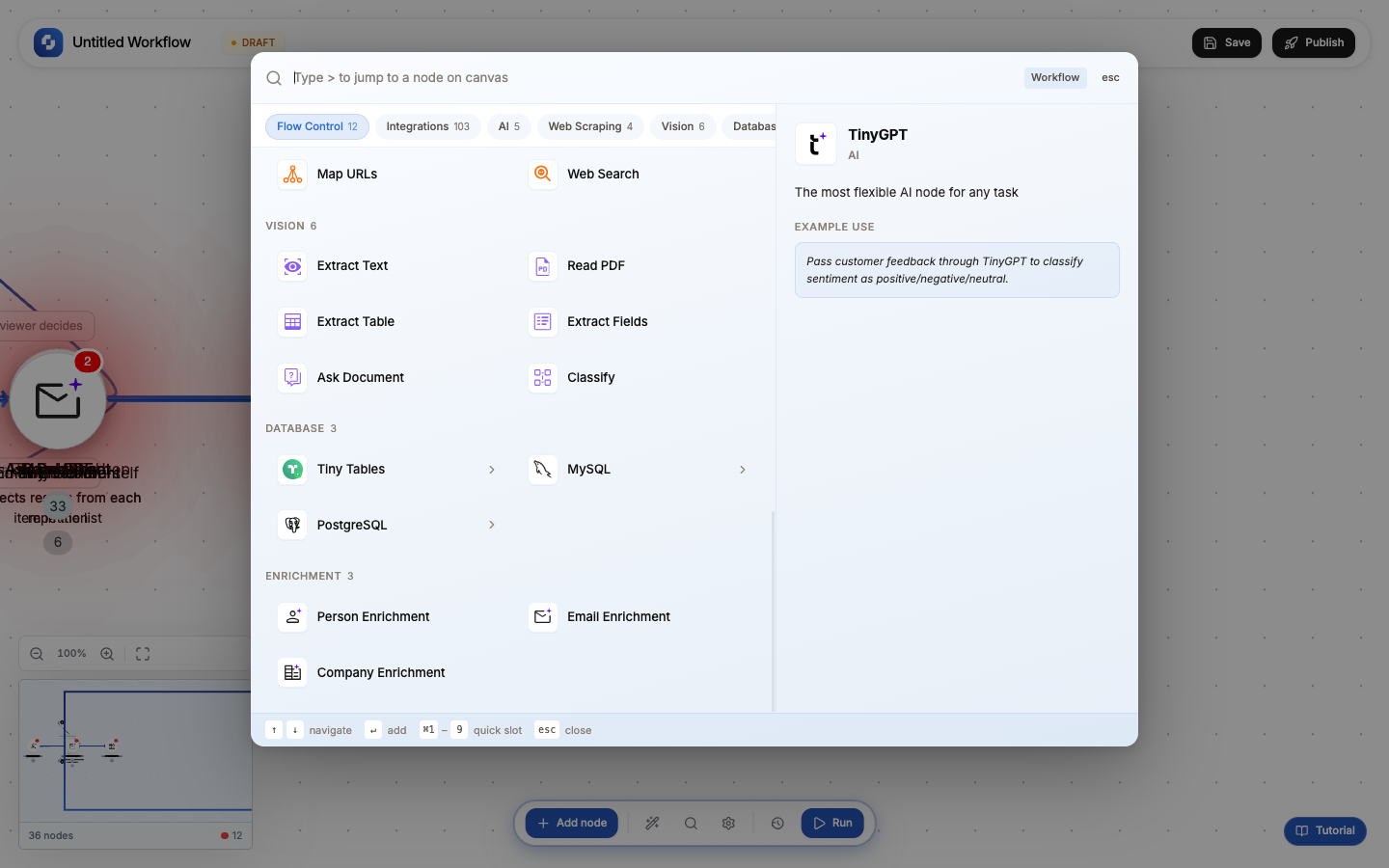
Available nodes
| Node | Credits each time it runs | What it does |
|---|---|---|
| Extract Text (OCR) | 1+ | Extract all text from an image or scanned document |
| Read PDF | 1+ | Extract full text content from a PDF file |
| Extract Table | 1+ | Extract structured table data from an image or PDF |
| Extract Fields | 1+ | Extract key-value pairs from forms, invoices, receipts |
| Ask Document | 1+ | Ask a natural language question about a document |
| Classify | 1+ | Classify a document's type or category |
Common input field
All TinyVision nodes require:
| Field | Type | Required | Description |
|---|---|---|---|
| File URL | FX formula | Yes | URL of the image, PDF, or document to process |
The file URL can come from a previous node (e.g., a webhook payload containing an uploaded file URL) or be a static URL.
Extract Text (OCR)
Extracts all text from an image or scanned document.
Additional fields:
- Enhance (Boolean, default true): apply image enhancement before OCR
- Query (FX formula, optional): specific text to look for
Output: { text: string, confidence: number }
Read PDF
Extracts the full text content of a PDF file.
Output: complete text content across all pages.
Extract Table
Extracts structured table data from images or PDFs containing tables.
Output: rows and columns as structured data; use with For Each to process each row.
Extract Fields
Extracts key-value pairs from forms, invoices, and receipts. Best for documents with labeled fields.
Output: key-value pairs from detected form fields (e.g., { "Total": "$150.00", "Date": "2026-01-15" }).
Ask Document
Ask a natural language question about a document and get an AI-generated answer.
Additional fields:
| Field | Type | Required | Description |
|---|---|---|---|
| Prompt | FX formula | Yes | The question to ask about the document |
| Output format | Select | No | text (default) |
Example: Upload an invoice PDF, ask "What is the total amount and due date?" The AI reads the document and answers.
Classify
Classifies a document into a type or category.
Output: document classification (e.g., "invoice", "receipt", "contract", "letter").
Common patterns
Invoice processing
Webhook (receive invoice URL) → Extract Fields → If-Else (check amount) → Create Record (log in database)
Document routing
Webhook → Classify → If-Else (route by type) → Different handlers per document type
PDF data extraction
Read PDF → TinyGPT Analyzer (extract structured data from text) → Create Record
For best OCR results, use clear, high-resolution images. Scanned documents at 300 DPI or higher produce the most accurate text extraction.