AI Analyzer
The AI Analyzer (TinyGPT Analyzer) takes unstructured text and extracts structured data from it. Give it a prompt, input text, and an expected output format, and it returns clean, typed data you can use in downstream nodes.
Configuration
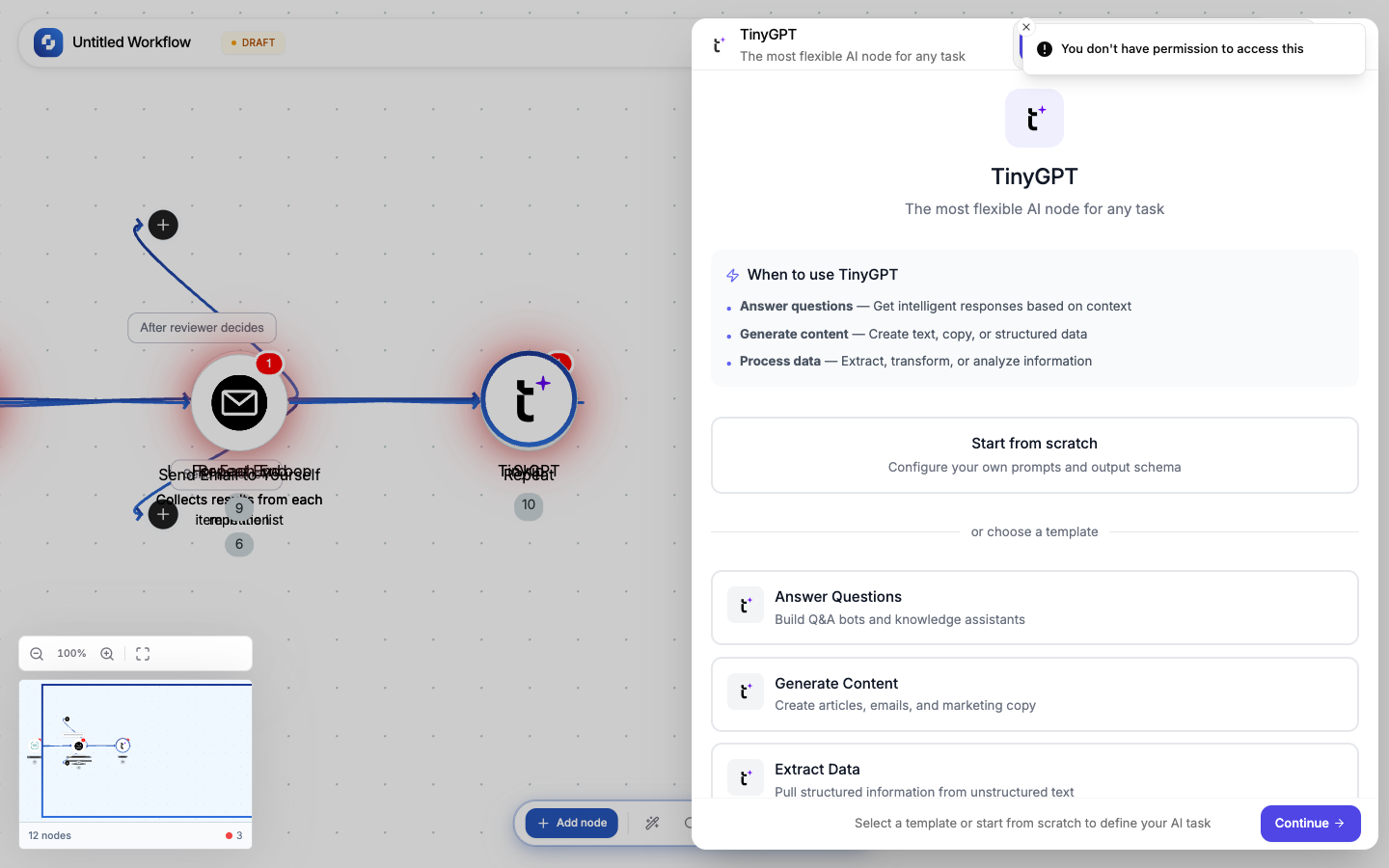
| Field | Description |
|---|---|
| Prompt | Instructions for the AI: what to extract, classify, or analyze |
| Input | The text to analyze (usually a variable like {{trigger.body.message}}) |
| Output format | Expected JSON schema; the AI will match this structure |
| Model | Which AI model to use (default: best available) |
Example: Sentiment analysis
Prompt: Analyze the sentiment of this customer message.
Return positive, negative, or neutral with a confidence score.

Input: {{trigger.body.message}}

Output format:
{
  "sentiment": "positive | negative | neutral",
  "confidence": 0.95,
  "key_phrases": ["fast shipping", "great quality"]
}
Example: Data extraction
Prompt: Extract the following from this email:
- Sender's name
- Company name
- Main request
- Urgency (low, medium, high)

Input: {{gmail.body}}
Using the output
The Analyzer's output is available as {{analyzer.result}}. If you specified a JSON output format:
{{analyzer.result.sentiment}}     → "positive"
{{analyzer.result.confidence}}    → 0.95
{{analyzer.result.key_phrases}}   → ["fast shipping", "great quality"]
Best practices
- Be explicit about output format: show the exact JSON structure you want
- Give examples: include 1-2 examples in your prompt for better accuracy
- Use with If-Else: route based on the classification result
- Keep input focused: don't send entire documents, extract the relevant section first
Warning
AI results are probabilistic, not deterministic. The same input may produce slightly different outputs. For critical workflows, add a Human-in-the-Loop node after the AI step.