Send Email
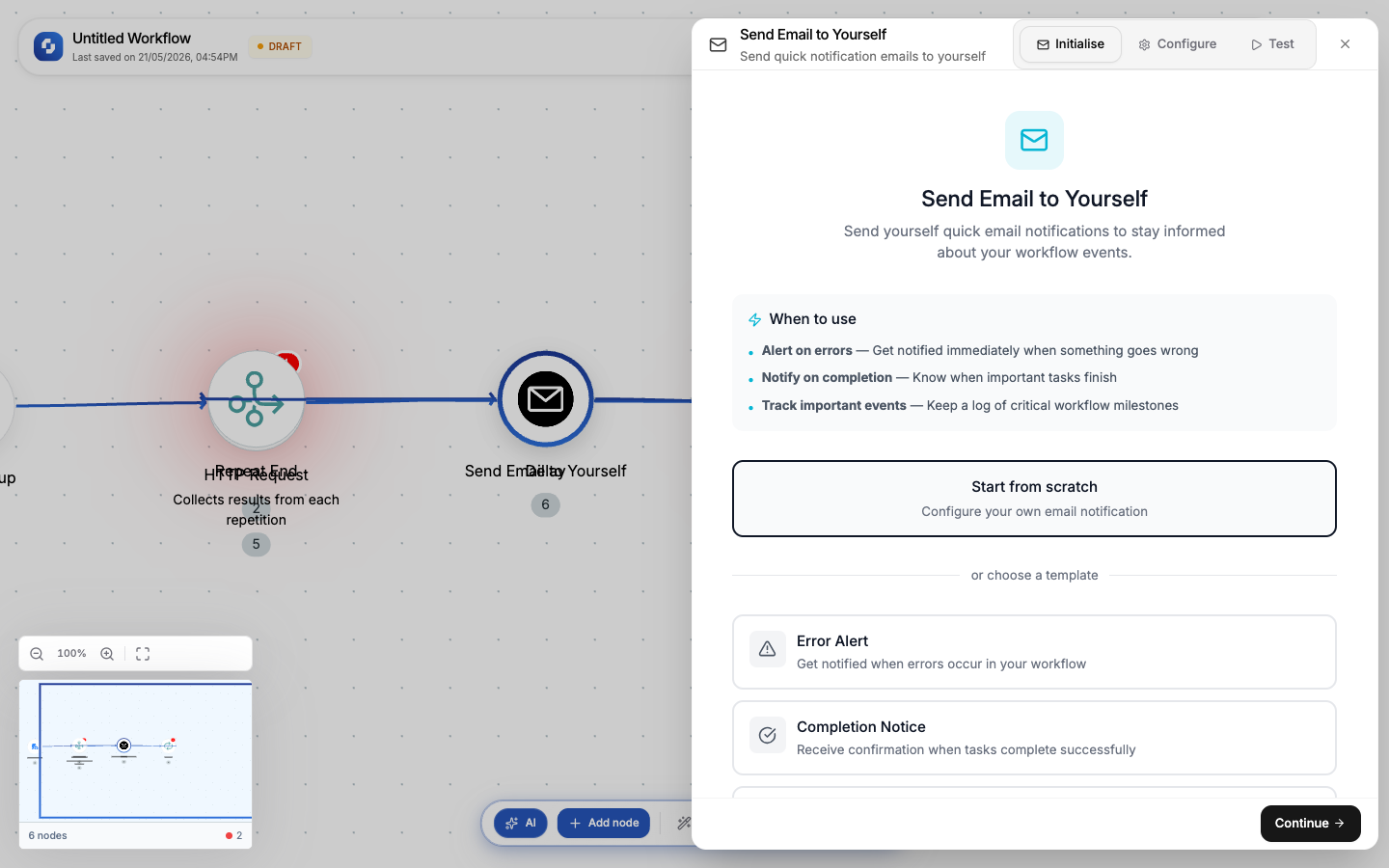
A workflow can send email in two ways: the built-in Send Email to Yourself node, which always emails your own account, or an integration step that sends from your own email account to anyone.
| Step | Type | Credits | Who receives it |
|---|---|---|---|
| Send Email to Yourself | SELF_EMAIL | 1 per step | Always your account email. Use it for alerts, summaries and debugging. |
| Gmail: Send Email | Integration | 1 per step | Anyone. Sends from your connected Gmail account. |
| Microsoft Outlook: Send Outlook Email | Integration | 1 per step | Anyone. Sends from your connected Outlook account. |
| SendGrid: Send Email | Integration | 1 per step | Anyone. Sends through your SendGrid account. |
Send Email to Yourself: Configuration
The built-in node always sends to the logged-in user's email:
| Field | Type | Required | Description |
|---|---|---|---|
| Priority | Select | No | LOW, NORMAL (default), HIGH, URGENT |
| Subject | FX formula | Yes | Email subject line. Supports variables. |
| Body | FX formula | No | Email body: plain text or HTML. Supports variables. |
Templates:
- Error Alert: HIGH priority, pre-filled with error subject
- Completion Notice: NORMAL priority
- Daily Summary: LOW priority
Emailing other people
To email a lead, a customer or your team from a workflow, add an integration step instead:
- Connect the account in Build → App Authorizations (Gmail, Microsoft Outlook or SendGrid)
- Add the integration to your workflow and pick its send action
- Map the recipient, subject and body from earlier steps with variables such as
{{trigger.body.email}}
See the Gmail guide for setup details.
Using variables in emails
Reference data from any previous node:
Subject: New lead: {{trigger.body.name}} from {{trigger.body.company}}

Body:
New form submission received:

Name: {{trigger.body.name}}
Email: {{trigger.body.email}}
Company: {{trigger.body.company}}
Message: {{trigger.body.message}}

Lead score: {{analyzer.result.score}}/100
Classification: {{analyzer.result.category}}
HTML email support
The Send Email to Yourself body supports HTML. Write HTML directly for formatted emails:
<h2>New Order Received</h2>
<p>Order #{{trigger.body.order_id}} from {{trigger.body.customer_name}}</p>
<table>
  <tr><td>Product</td><td>{{trigger.body.product}}</td></tr>
  <tr><td>Amount</td><td>${{trigger.body.amount}}</td></tr>
  <tr><td>Status</td><td>Confirmed</td></tr>
</table>
A workflow can't send a TinyEmails design. To send a designed email to a list of people, use TinyCampaigns: it sends your TinyEmails design to a TinyTables list and fills each {{field}} from that person's row.
Common patterns
Form submission alert
Form Submission → Send Email to Yourself (new response summary)
Error notification
HTTP Request → If-Else (status != 200) → Send Email to Yourself (HIGH priority error alert)
Daily digest
Schedule (daily 9am) → Find All (get today's records) → Transformer (build summary) → Send Email to Yourself (digest)
Confirmation to the person who submitted
Form Submission → Gmail: Send Email (to {{trigger.body.email}})
Debugging with Send Email to Yourself
The "Send Email to Yourself" node is a quick debugging tool:
- Add it after any node in your workflow
- Set the subject to describe what you're checking
- Set the body to
{{previous_node.output}} - Run the workflow; you get an email with the exact data at that point
This is faster than checking execution history for quick debugging during development.
Gmail, Outlook and SendGrid steps send real emails, even during test runs. Use "Send Email to Yourself" during development to avoid accidentally emailing customers.
Send Email to Yourself sends from TinyCommand's sending address to your account email. Check your spam folder if test emails don't arrive.