Connection Manager
The Connection Manager (App Authorizations) is where you set up and manage credentials for third-party apps. Authorize an app once, and every workflow, form, and agent in your workspace can use that connection.
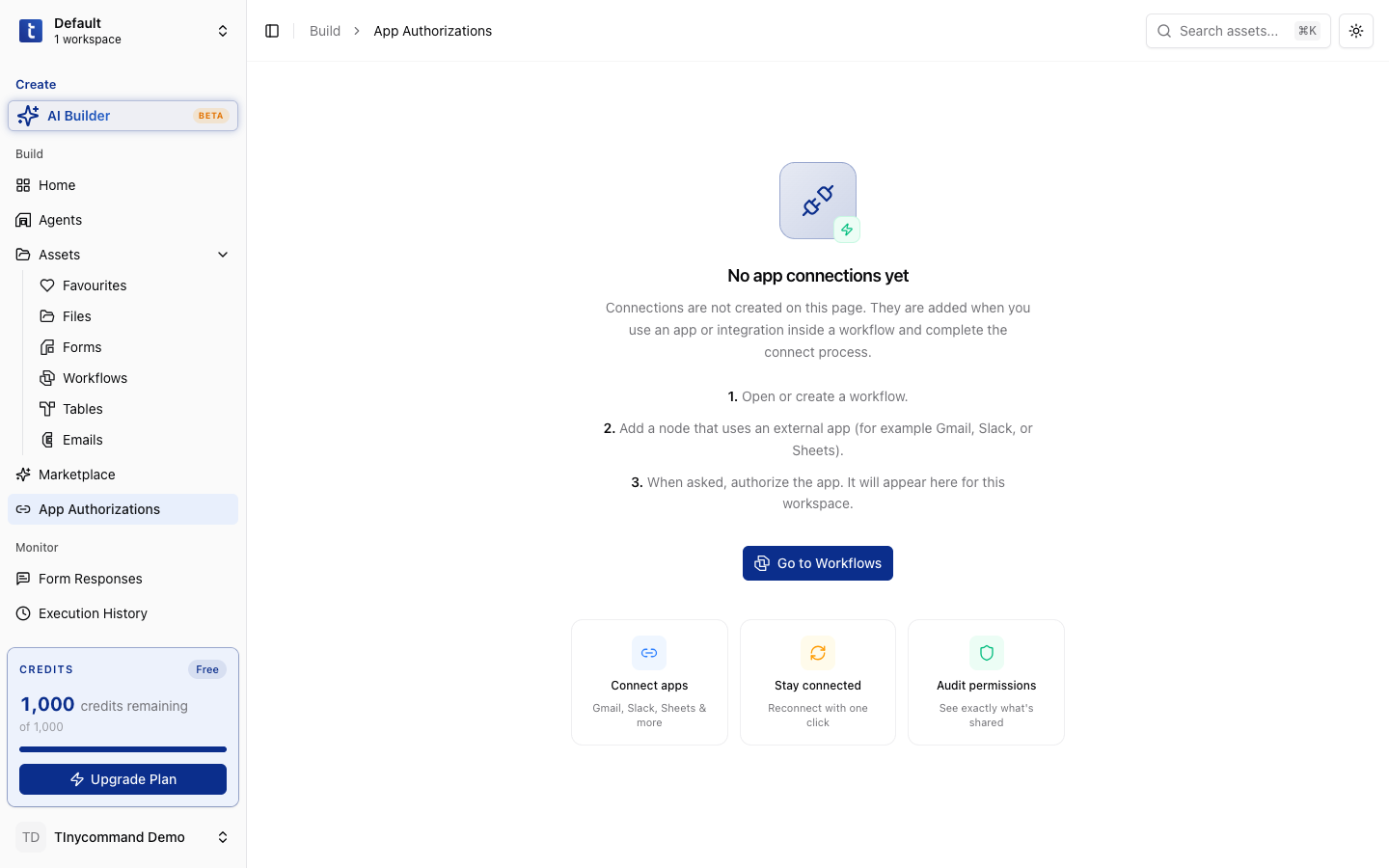
How connections work
- You authorize TinyCommand to access a third-party app (Slack, Gmail, Stripe, etc.)
- TinyCommand stores the credentials securely (OAuth tokens, API keys)
- When a workflow node needs that app, it uses the stored connection
- If a token expires, the connection auto-refreshes (for OAuth2) or alerts you to reconnect
Connections are workspace-level: everyone on the team can use a connection once it's set up. You don't need to re-authorize per workflow or per user.
Authorization types
OAuth2
| Step | What happens |
|---|---|
| 1. Click Connect | A popup opens with the app's login page |
| 2. Sign in | Enter your credentials for the app (Slack, Google, etc.) |
| 3. Grant permissions | Review what TinyCommand will access and click Allow/Authorize |
| 4. Redirect back | The popup closes, connection is saved |
Apps using OAuth2: Slack, Gmail, Google Sheets, Google Calendar, Google Drive, HubSpot, Salesforce, Microsoft Teams, Microsoft Outlook, GitHub, Linear, Notion, Shopify, Zoom, and most modern SaaS apps.
OAuth2 tokens auto-refresh; you don't need to reconnect unless you revoke access from the app's settings.
API Key
| Step | What happens |
|---|---|
| 1. Go to the app's settings | Find the API key in Developer Settings, Integrations, or similar |
| 2. Copy the key | Copy the API key or secret token |
| 3. Paste in TinyCommand | Click + Add Connection → select the app → paste the key |
Apps using API keys: Stripe, SendGrid, OpenAI, Anthropic, Mailchimp, Twilio, and most developer-focused APIs.
API keys don't expire unless you rotate them in the app's settings.
Basic Auth
Username + password authentication. Used for:
- Custom REST APIs
- Legacy systems
- Internal services
Custom Headers
Add arbitrary HTTP headers for authentication. Used for:
- APIs with custom auth schemes (e.g.,
X-API-Key,X-Custom-Token) - Internal microservices
- Proxied APIs
Setting up a connection
- Go to Build → App Authorizations in the platform sidebar
- Click + Add Connection (or find an existing app in the list)
- Select the app you want to connect
- Follow the authorization flow (OAuth2 popup, API key paste, etc.)
- Name the connection: this name appears in workflow node dropdowns
- Click Save
Naming conventions
If you have multiple accounts for the same app:
| Connection name | When to use |
|---|---|
Slack - Marketing | Marketing team's Slack workspace |
Slack - Engineering | Engineering team's Slack workspace |
Gmail - Support | support@company.com account |
Gmail - Sales | sales@company.com account |
Stripe - Production | Live Stripe account |
Stripe - Test | Stripe test mode |
Using connections in workflows
When you add an integration node (e.g., "Send Slack Message"):
- The node shows a Connection dropdown
- Select from your saved connections
- If no connection exists yet, a Connect button appears
- Clicking Connect starts the OAuth/API key flow directly from the canvas
- After connecting, the node is ready to use
Managing existing connections
| Action | What it does |
|---|---|
| Test | Verify the connection still works (makes a lightweight API call) |
| Reconnect | Re-authorize if the token expired or permissions changed |
| Edit | Update the connection name or settings |
| Delete | Remove the connection permanently |
Deleting a connection breaks all workflows that use it. Every node referencing that connection will fail at runtime. Reconnect instead of deleting when possible. If you must delete, update affected workflows first.
Troubleshooting connections
| Issue | Cause | Fix |
|---|---|---|
| "Connection expired" | OAuth token expired and couldn't auto-refresh | Click Reconnect |
| "Invalid API key" | API key was rotated in the app's settings | Update the key in TinyCommand |
| "Permission denied" | The app requires additional scopes/permissions | Reconnect and grant the new permissions |
| "Connection not found" | Someone deleted the connection | Create a new connection |
Set up connections before building workflows. It's easier to configure nodes when the connection already exists: you just select it from a dropdown instead of going through the auth flow mid-build.
Connections are stored securely: OAuth tokens and API keys are encrypted at rest. They're never exposed in workflow exports or shared links.