Canvas Overview
The canvas is the visual workspace where you build workflows. Every node, connection, and configuration happens here.
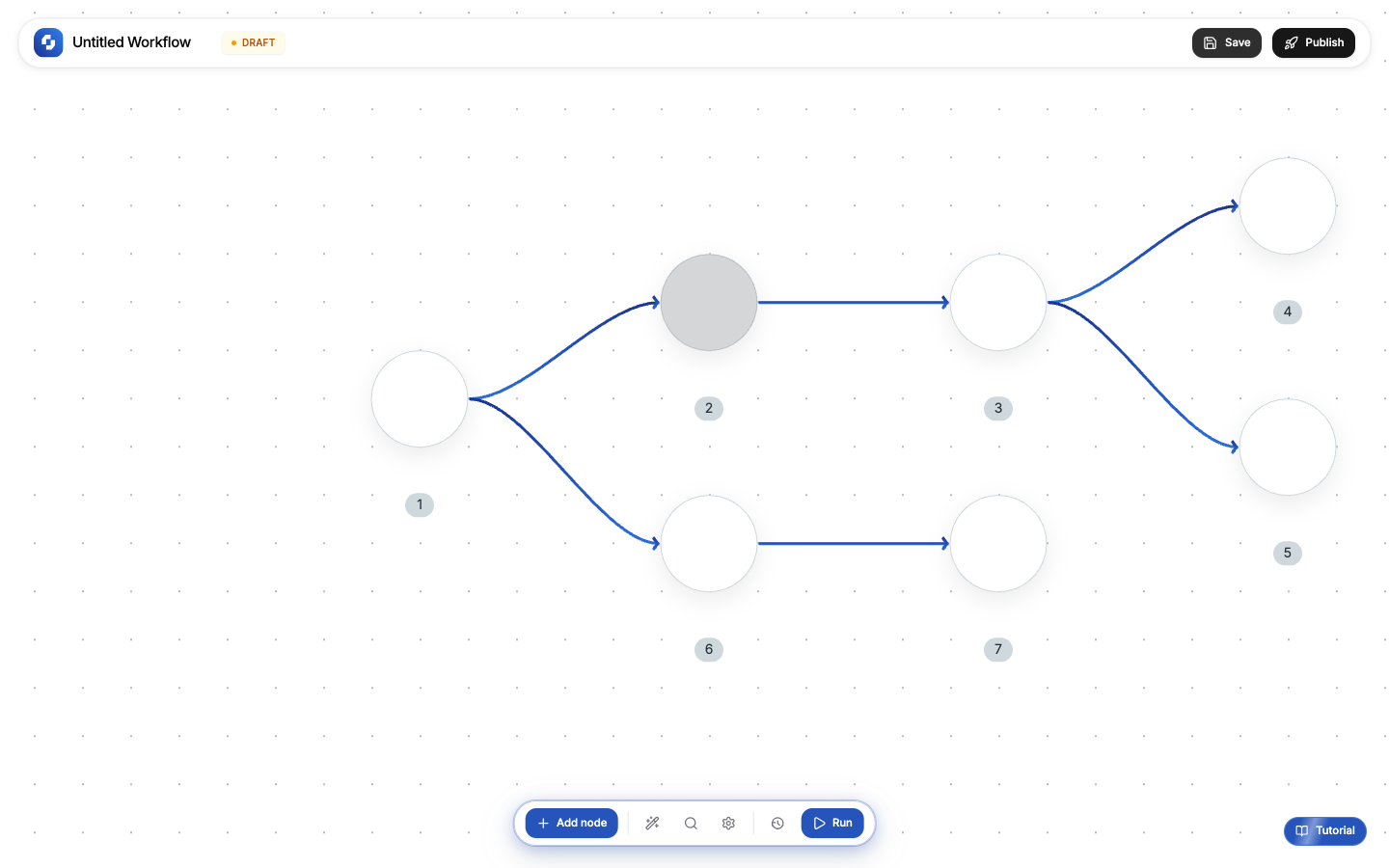
Layout
The canvas has three areas:
| Area | Where | What it does |
|---|---|---|
| Top bar | Top | Workflow name, DRAFT/Published badge, Save and Publish buttons |
| Canvas | Center | Drag-and-drop workspace for nodes and connections |
| Bottom bar | Bottom | AI, + Add node, search, settings, execution history, Run |
Adding nodes
Click + Add node in the bottom bar to open the node panel. You can also use the search icon to find specific nodes.
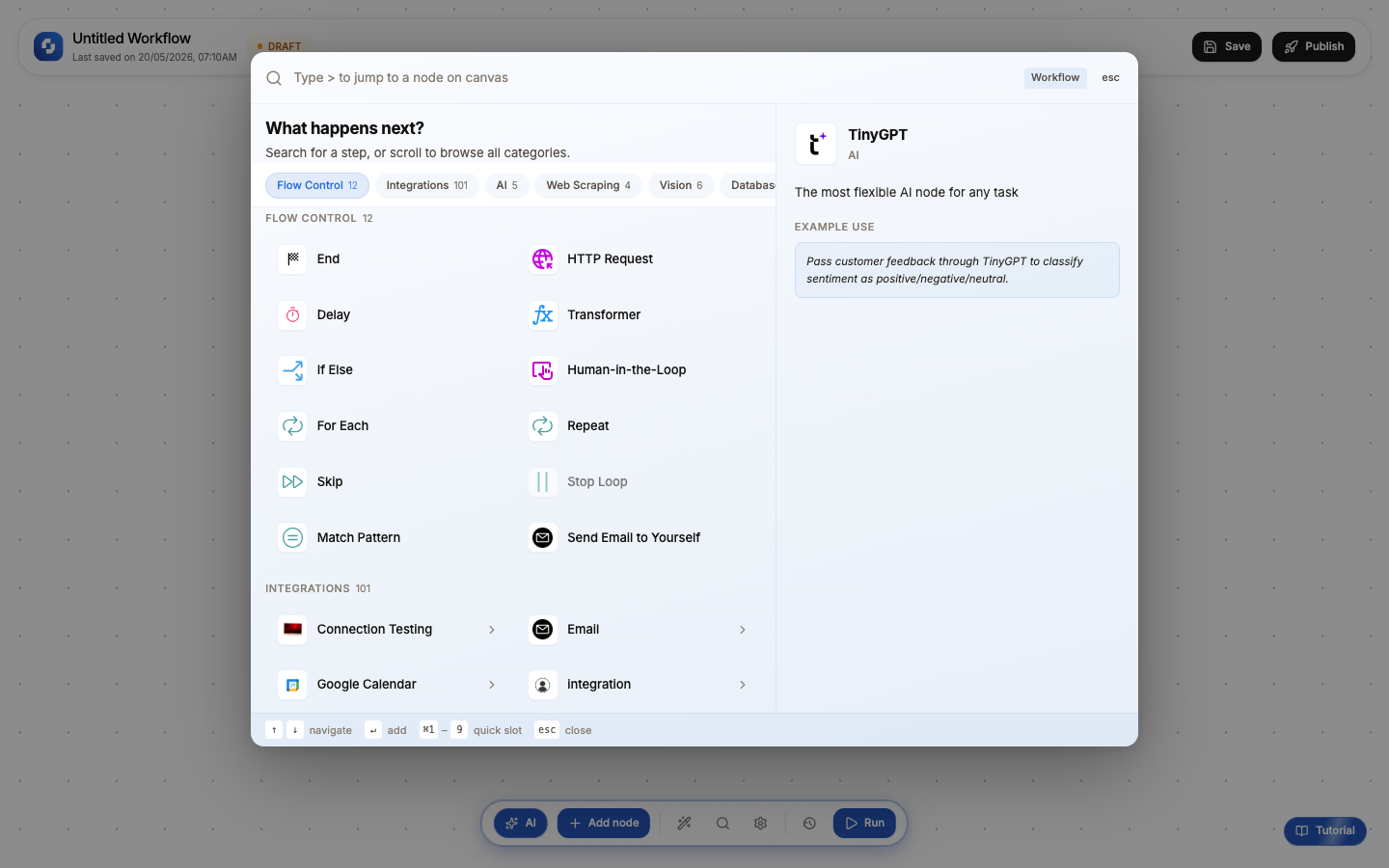
The panel shows:
- Left side: all node types organized by category
- Right side: preview of the selected node with description and example use case
- Search bar: type to filter nodes by name
Three ways to add a node:
- + Add node button: click it in the bottom bar
- Search icon: click the magnifying glass in the bottom bar
- After a trigger: the canvas auto-suggests the next step
Connecting nodes
When you add a node, it automatically connects to the previous node with an arrow. Arrows show the direction data flows.
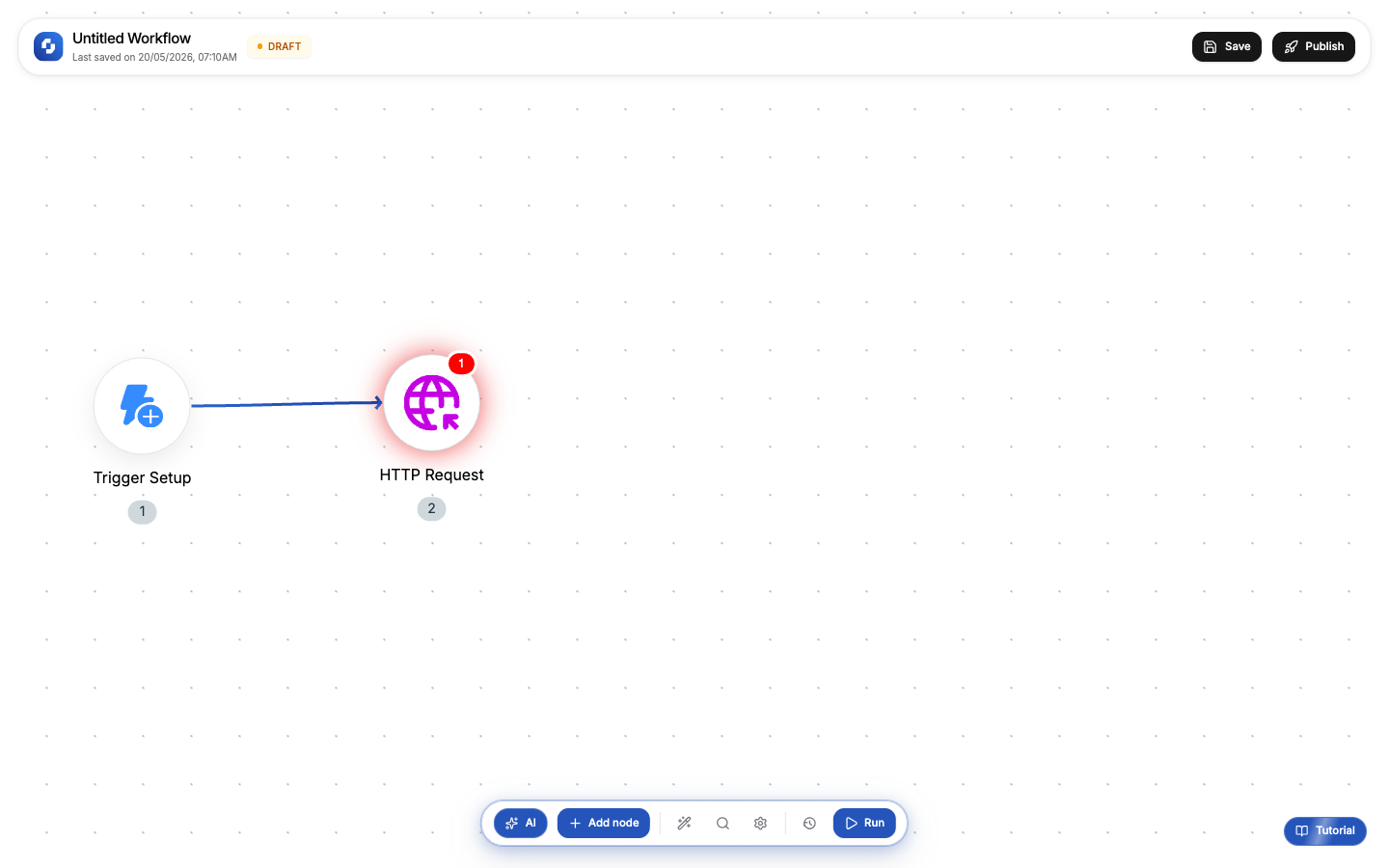
- Solid arrows: unconditional, data always flows
- Dashed arrows: conditional, used with If-Else (only one branch fires)
Tip
You can connect one node's output to multiple downstream nodes. Both will execute; this is how you run steps in parallel.
The toolbar
The top bar shows:
- Workflow name: click to rename
- Status badge: DRAFT (orange) or Published (green)
- Last saved: timestamp of the most recent save
- Save: persist your changes as a draft
- Publish: make the workflow live (or unpublish to pause it)
The bottom bar
The bottom bar is your primary action center:
| Button | What it does |
|---|---|
| AI | Open the AI assistant; describe what you want in plain language |
| + Add node | Open the node panel to add triggers, actions, logic, and more |
| Wand icon | Formula-FX: AI-powered expression builder |
| Search | Find nodes on the canvas |
| Settings | Workflow settings (name, description, error handling) |
| Clock | Execution history: see past runs |
| Run | Test-run the workflow with sample data |
Keyboard shortcuts
| Shortcut | Action |
|---|---|
| Cmd+S | Save workflow |
| Cmd+Z | Undo |
| Cmd+Shift+Z | Redo |
| Delete | Delete selected node |
| Cmd+D | Duplicate selected node |
Zoom and pan
- Scroll wheel: zoom in/out
- Click and drag on empty canvas: pan around
- Pinch on trackpad: zoom in/out