Database Nodes
Database nodes let you interact with databases directly from your workflows. Query data, insert records, update fields, and delete rows, all without writing SQL by hand.
Available nodes
| Node | What it does |
|---|---|
| Create Record | Insert a new row into a table |
| Read Record | Query and retrieve records |
| Update Record | Modify existing records |
| Delete Record | Remove records from a table |
| TinyTable | Read/write to TinyTables (TinyCommand's built-in spreadsheet-database) |
Supported databases
- PostgreSQL: full CRUD support
- MySQL: full CRUD support
- TinyTables: native integration with TinyCommand's data product
How it works
- Set up a database connection in App Authorizations (host, port, credentials)
- Add a database node to your canvas
- Select the connection and table
- Configure the operation (insert, query, update, delete)
- Use variables to pass data from previous nodes
Common patterns
Log webhook data to a database
Webhook Trigger → Create Record (insert the payload into a table)
Enrich data from a database
Trigger → Read Record (look up customer by email) → Send Email (use the customer's name)
Sync two systems
Schedule Trigger → Read Record (source DB) → For Each → HTTP Request (push to external API)
For simple data storage without managing a database, use TinyTables, TinyCommand's built-in spreadsheet-database that requires no setup.
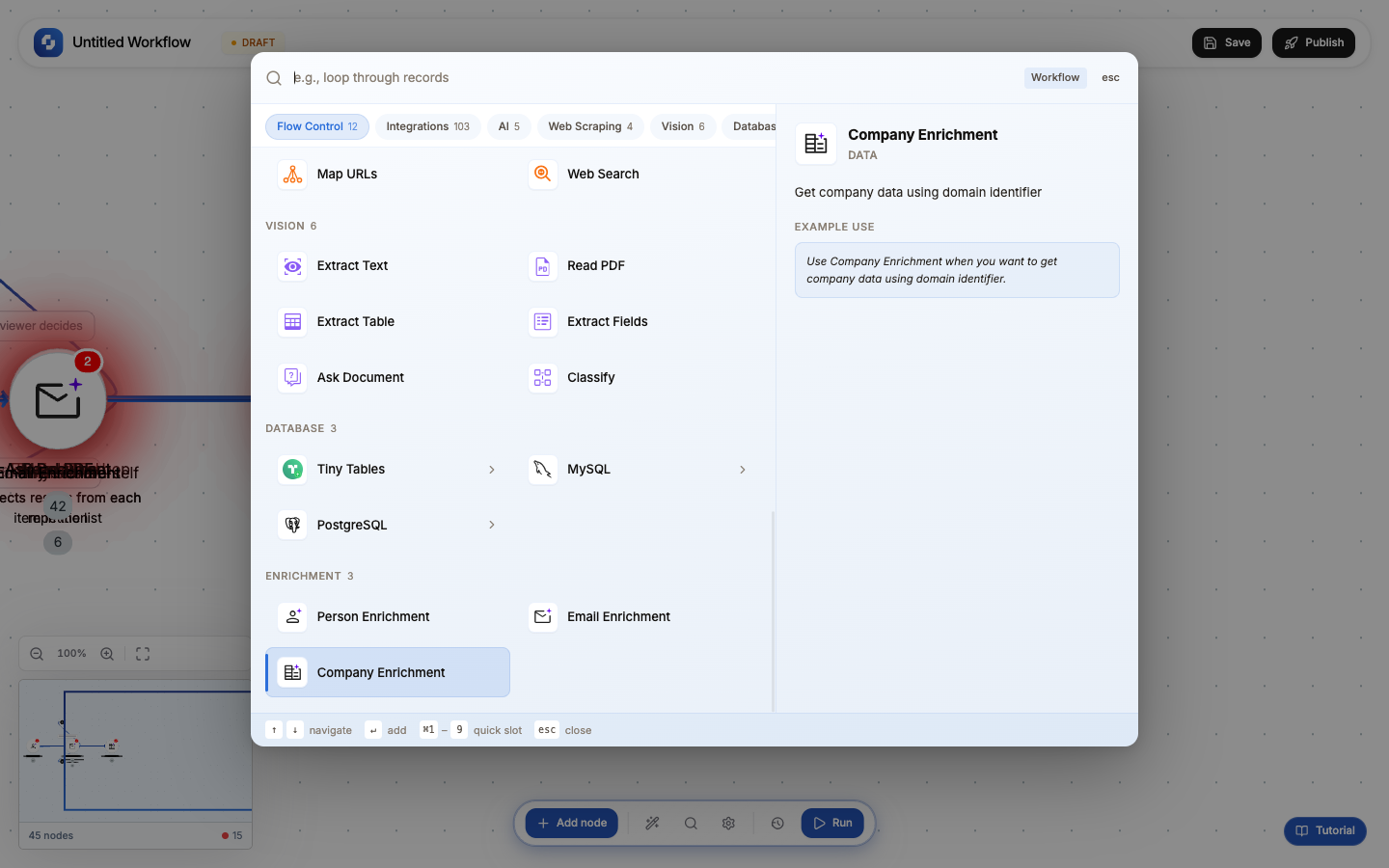
Database types
TinyWorkflows supports two database engines plus TinyTables:
| Database | Connection type | Schema support | Best for |
|---|---|---|---|
| PostgreSQL | Host + port + credentials | Schema selection (default: public) | Production apps, complex queries |
| MySQL | Host + port + credentials | Database selection | WordPress, legacy apps |
| TinyTables | Built-in (no setup) | Automatic | Quick storage, team collaboration |
Setting up a database connection
Before using database nodes, set up a connection:
- Go to Build → App Authorizations
- Click + Add Connection
- Choose PostgreSQL or MySQL
- Enter: host, port, database name, username, password
- For PostgreSQL, optionally select a schema (default:
public) - Click Test Connection to verify
- Click Save
The 3-tab pattern
All database nodes follow the same flow:
- Initialise: choose a template (e.g., "Find by ID", "Insert User", "Delete Expired")
- Configure: set connection, table, fields/conditions
- Test: run against your real database and see the result
Use TinyTables for prototyping: no database setup needed. When you're ready for production, switch to PostgreSQL and update the connection in your nodes. The workflow logic stays the same.
Database nodes run real queries during testing. Use a test database or be careful with DELETE/UPDATE queries that could affect production data.