Integrations
TinyWorkflows connects to 100+ third-party apps out of the box. Each integration provides pre-built triggers and actions, no API coding required.
Browse integrations
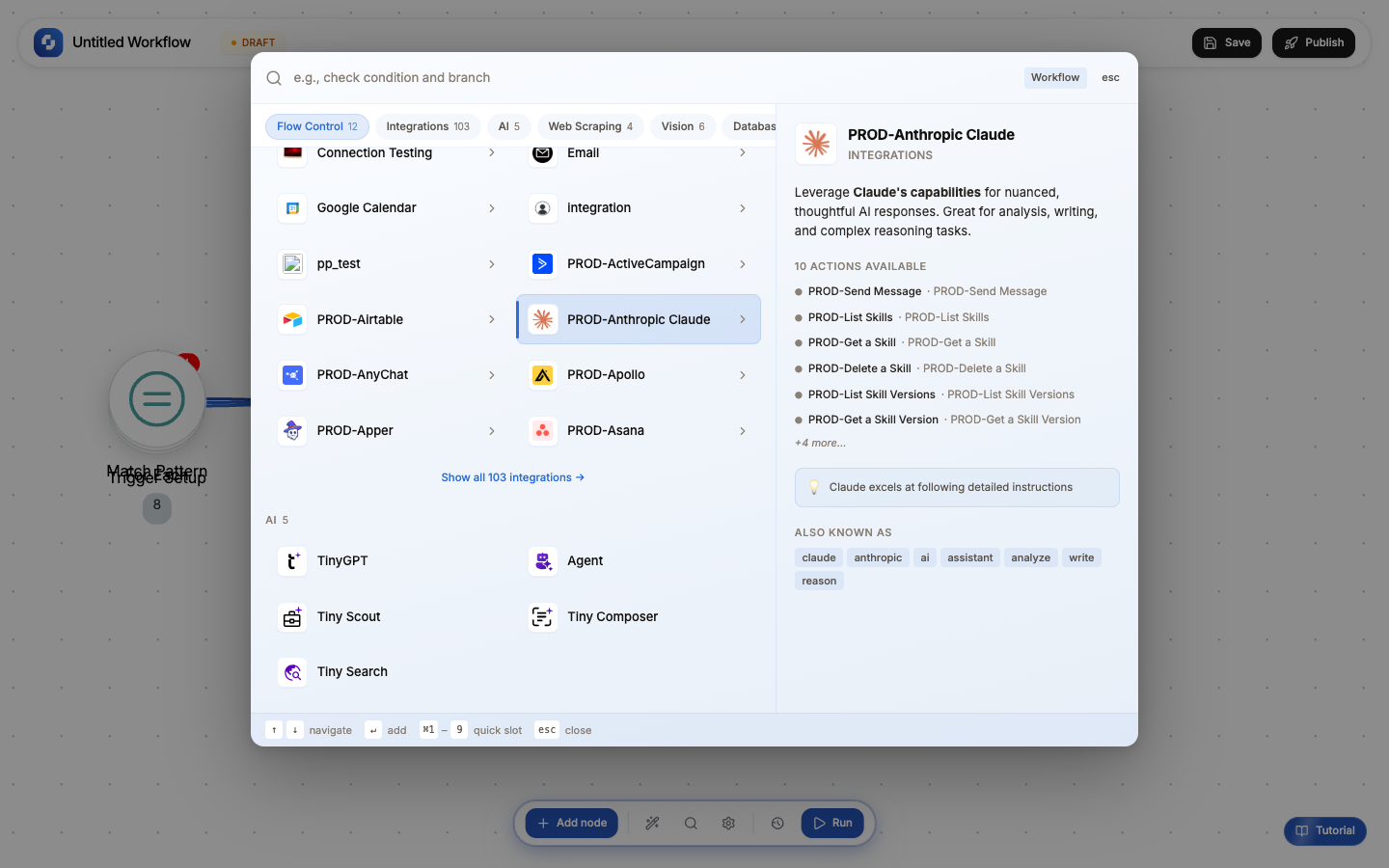
Open the Add node panel and scroll to the Integrations section. You'll see 101 pre-built connectors including:
- Communication: Slack, Discord, Microsoft Teams, Twilio
- Email: Gmail, Outlook, SendGrid, Mailchimp
- CRM: HubSpot, Salesforce, Pipedrive, Attio
- Payments: Stripe, PayPal, Razorpay
- Spreadsheets: Google Sheets, Airtable, Notion
- Project Management: Jira, Linear, Asana, ClickUp, Monday.com
- Developer: GitHub, GitLab, Bitbucket, Sentry
- AI: OpenAI, Anthropic, Google AI
Setting up an integration
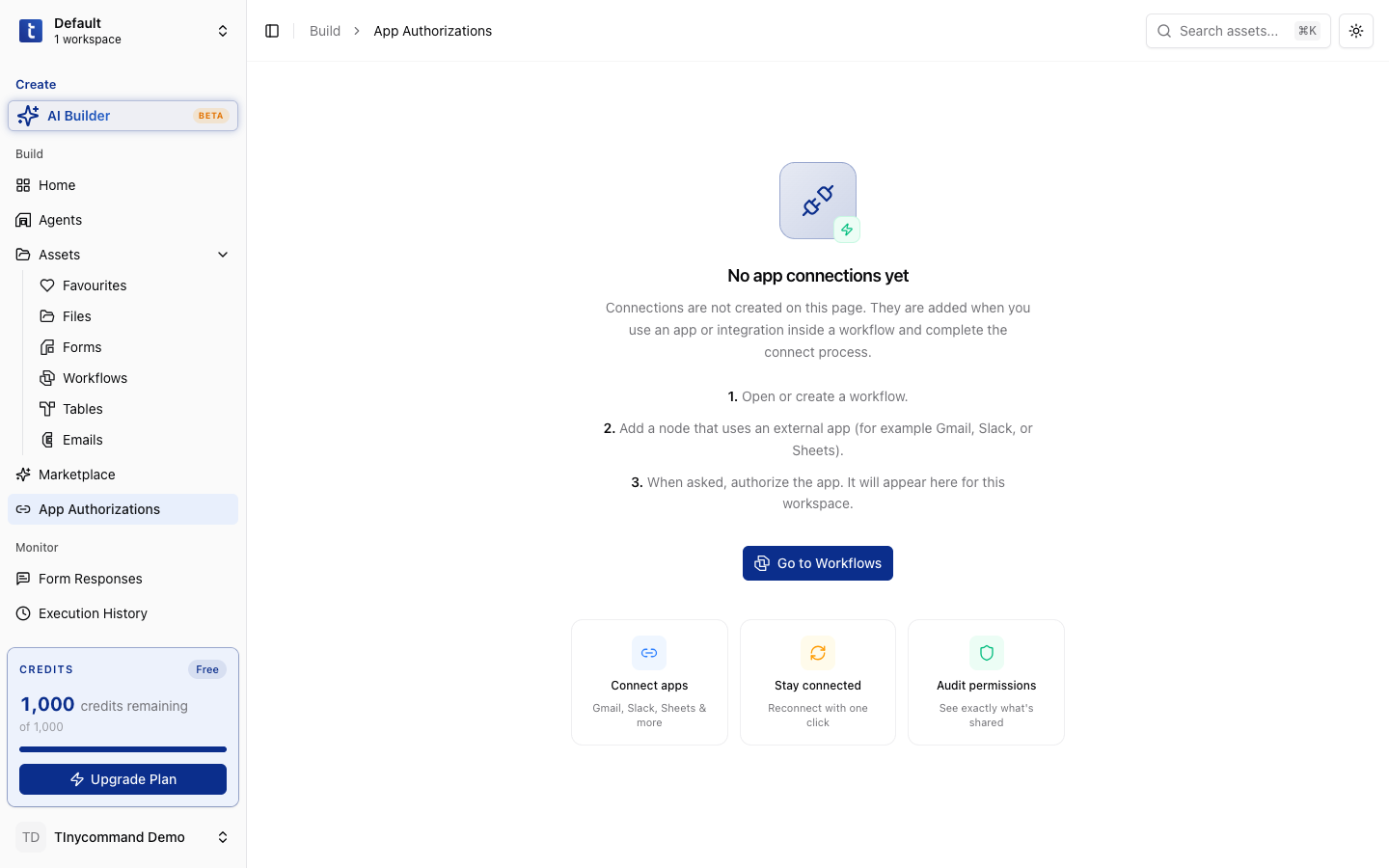
Before using an integration in a workflow, you need to authorize TinyCommand to access your account:
- Go to App Authorizations in the left sidebar
- Click the app you want to connect (e.g., Slack)
- Follow the OAuth flow: sign in and grant permissions
- The connection is now available in all your workflows
Using integrations in workflows
Once authorized, integration nodes appear in the Add node panel. Each integration offers:
- Triggers: events that start your workflow (e.g., "New message in Slack channel")
- Actions: things your workflow can do (e.g., "Send Slack message", "Create HubSpot contact")
Can't find an integration?
If the app you need doesn't have a pre-built integration:
- HTTP Request: call any REST API directly
- Webhook Trigger: receive data from any app that supports webhooks
- Request an integration: contact us and we'll prioritize it
The HTTP Request node works with any REST API. You can build your own custom integrations without waiting for a pre-built connector.
Popular integrations
| Category | Top apps |
|---|---|
| Communication | Slack, Discord, Microsoft Teams, Twilio, WhatsApp |
| Gmail, Outlook, SendGrid, Mailchimp, Postmark | |
| CRM | HubSpot, Salesforce, Pipedrive, Attio, Close |
| Payments | Stripe, PayPal, Razorpay, Square |
| Spreadsheets | Google Sheets, Airtable, Notion, Coda |
| Project Management | Jira, Linear, Asana, ClickUp, Monday.com, Trello |
| Developer | GitHub, GitLab, Bitbucket, Sentry, PagerDuty |
| AI | OpenAI, Anthropic, Google AI, Cohere |
| E-commerce | Shopify, WooCommerce, BigCommerce |
| Calendar | Google Calendar, Calendly, Cal.com |
| Storage | Google Drive, Dropbox, AWS S3, Azure Blob |
| Social | Twitter/X, LinkedIn, Facebook, Instagram |
| Support | Zendesk, Intercom, Freshdesk, HelpScout |
Integration node structure
Each integration provides:
- Triggers: events that start a workflow (e.g., "New Slack message", "Stripe charge succeeded")
- Actions: things the workflow can do (e.g., "Send Slack message", "Create HubSpot contact")
Not all integrations have both triggers and actions. Some are action-only (you can send TO them but not trigger FROM them).
Building custom integrations
If the app you need doesn't have a pre-built integration:
- HTTP Request node: call any REST API with full control over method, headers, body, and auth
- Webhook trigger: receive data from any app that can send webhooks
- Custom headers: authenticate with any API using custom header schemes
The HTTP Request node effectively gives you access to any API in the world: if it has a REST endpoint, you can connect to it.
Before building a custom HTTP integration, check if the app is in the integration list; new integrations are added weekly. You can also request an integration by clicking the Request button.
Some integrations are labeled "PROD-" in the Add Node panel. This means they're in production beta. They work but may have limited trigger/action coverage.