Grid View
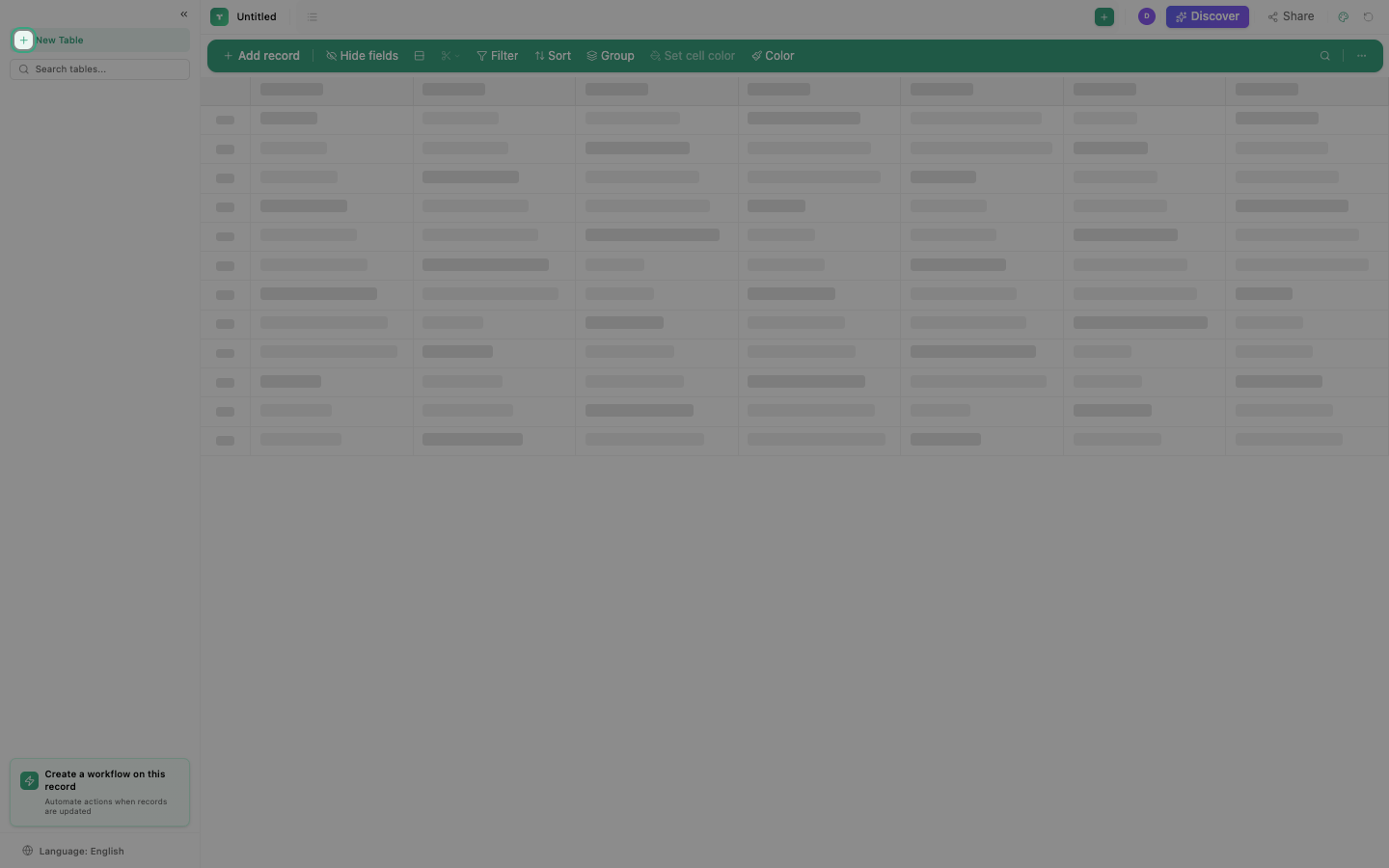
The default view, a spreadsheet-like interface optimized for data entry and analysis.
Features
| Feature | Description |
|---|---|
| Virtual scrolling | Handles thousands of rows without lag; only renders visible rows |
| Column resize | Drag column borders to adjust width |
| Column reorder | Drag column headers to rearrange |
| Column freeze | Pin columns to the left side (they stay visible when scrolling horizontally) |
| Row height | 4 levels: Compact, Short, Medium, Tall |
| Text wrap | 3 modes: Clip (cut off), Wrap (show all), Expand (auto-height) |
| Cell selection | Click, Shift-click for range, drag to select multiple cells |
| Keyboard navigation | Arrow keys, Tab, Enter to move between cells |
| Context menu | Right-click for row/column operations (insert, delete, duplicate, copy) |
| Expand record | Click the expand icon on any row to see full record detail in a modal |
| Undo/Redo | 50-action history: undo cell changes, row add/delete, column add/delete |
Editing cells
Click any cell to edit. The editor depends on the column type:
| Column type | Editor |
|---|---|
| Text | Inline text input |
| Number/Currency | Numeric input |
| Select | Dropdown with options |
| Date | Calendar picker |
| File | File upload dialog |
| Rating | Click icons |
| Checkbox/Yes-No | Toggle |
Row operations
Right-click a row or use the row menu:
- Insert row above/below
- Duplicate row
- Delete row
- Copy row data
- Expand record (full detail view)
Column operations
Right-click a column header:
- Sort ascending/descending
- Hide column
- Freeze column
- Resize column
- Change column type
- Delete column
- Insert column left/right
Tip
Use Compact row height for data-dense tables (CRM, inventory). Use Tall for tables with long text fields (notes, descriptions).