Row Detail
Click any row to expand it into a full detail panel. The row detail view shows every field in a vertical layout, easier to read and edit than scrolling horizontally across columns.
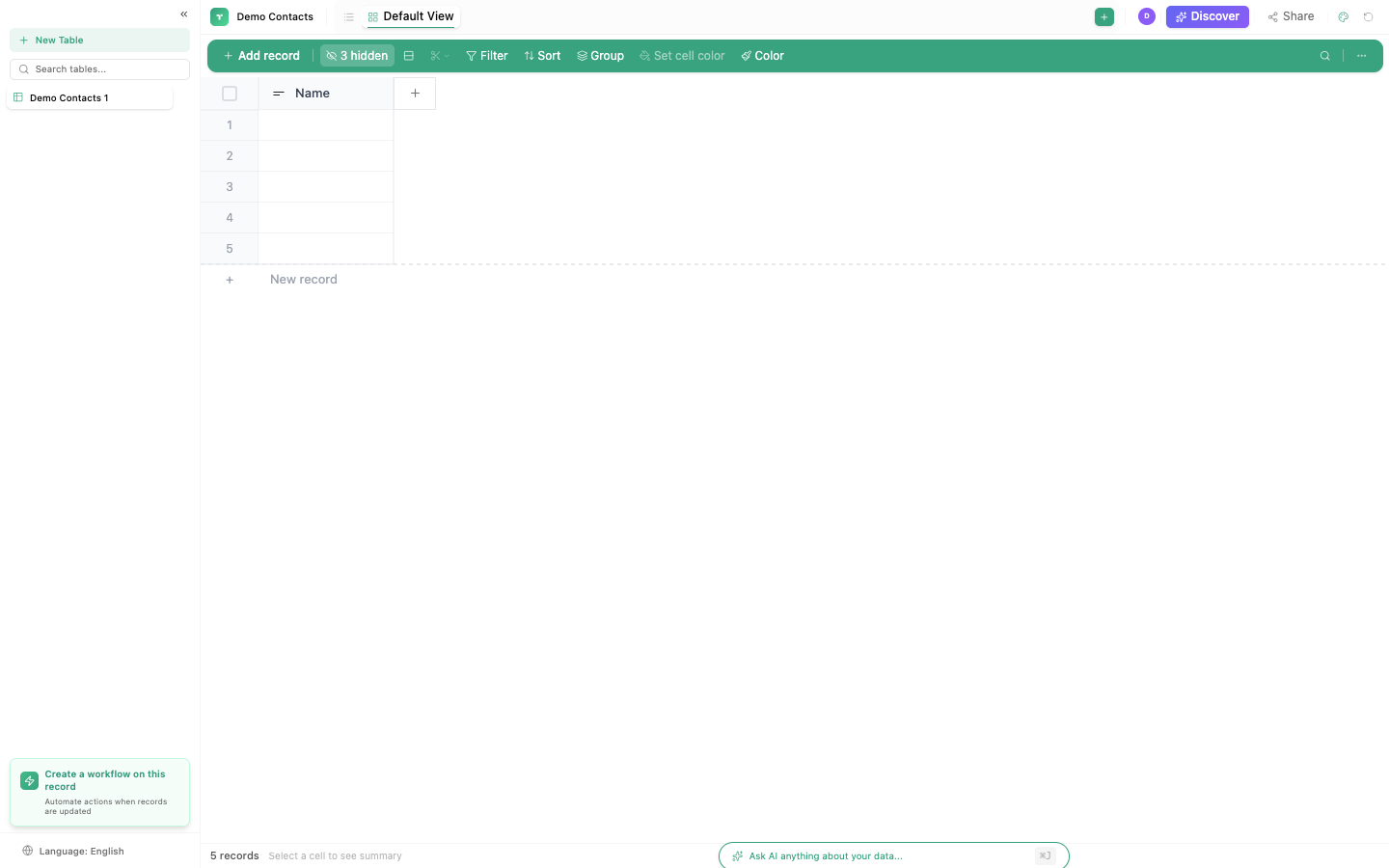
Opening row detail
| Method | How |
|---|---|
| Click | Click the expand icon (↗) at the start of any row |
| Keyboard | Select a row and press Space or Enter |
| From Kanban | Click any card in Kanban view |
| From Gallery | Click any card in Gallery view |
| From Calendar | Click any event in Calendar view |
What's in the row detail panel
The panel displays all columns vertically, organized into sections:
Field values
Every column in the table appears as an editable field. Field types render their appropriate input:
| Field type | Renders as |
|---|---|
| Text | Text input |
| Long text | Multi-line textarea with rich formatting |
| Number | Number input with increment/decrement |
| Choice | Dropdown or tag selector |
| Date | Date picker |
| Checkbox | Toggle switch |
| File | File upload area with previews |
| Link | URL input with "Open" button |
| Rating | Star selector |
| User | User picker |
| Linked record | Link to related records with preview |
Activity section
Below the fields, the activity section shows:
- Comments: team discussion about this specific row (see Comments)
- History: changelog of who modified which fields and when
Header
The top of the panel shows:
- The row's primary field value as the title
- Copy link: get a direct URL to this row
- Delete: remove the row (with confirmation)
- Close: close the panel
Editing in row detail
All fields are editable directly in the panel:
- Click any field value to start editing
- Make your change
- Changes save automatically when you click away or press
Tab
There's no explicit save button; row detail uses auto-save.
Navigation
Navigate between rows without closing the panel:
| Action | Keyboard | Button |
|---|---|---|
| Next row | ↓ or → | Arrow buttons at top |
| Previous row | ↑ or ← | Arrow buttons at top |
| Close panel | Escape | X button |
Panel position
The row detail opens as a slide-over panel on the right side of the screen. The table remains visible behind it, so you can see which row you're editing in context.
On smaller screens, the panel takes the full width.
Use row detail as your primary editing interface when a row has many columns. It's much easier to see and edit all 20+ fields vertically than scrolling horizontally across the grid.
Changes made in the row detail panel are immediately visible to all team members viewing the same table. There's no draft/publish workflow; edits are live.