Sorting
Sort your TinyTable data by any column in ascending or descending order. You can apply single-column sorts or stack multiple sort levels for complex ordering.
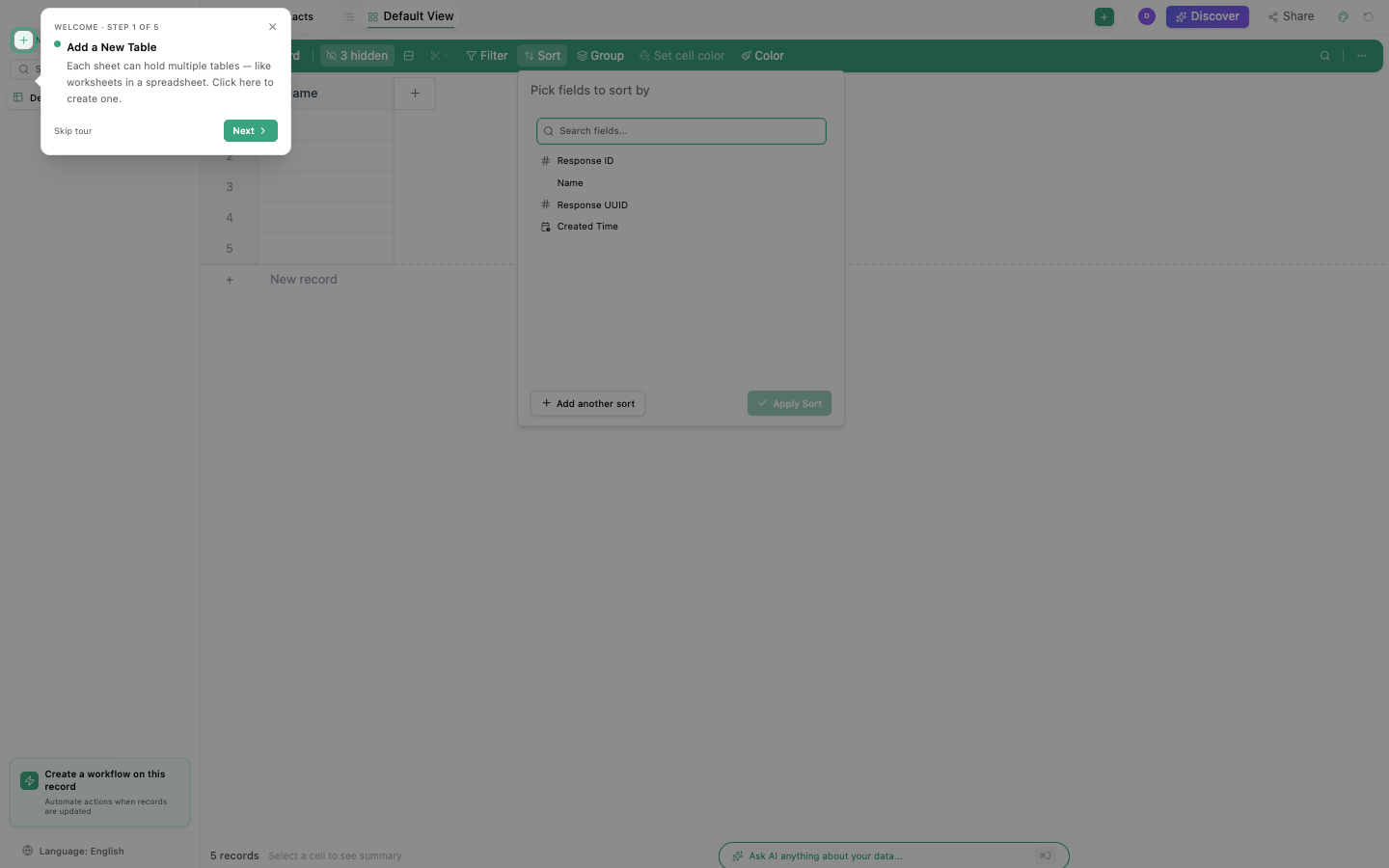
Single-column sort
- Click the column header you want to sort by
- Click once for ascending (A→Z, 1→9, oldest→newest)
- Click again for descending (Z→A, 9→1, newest→oldest)
- Click a third time to remove the sort
A sort arrow appears in the column header to show the current direction.
Sort behavior by column type
| Column type | Ascending | Descending |
|---|---|---|
| Text | A → Z (alphabetical) | Z → A |
| Number | Smallest → largest | Largest → smallest |
| Date | Oldest → newest | Newest → oldest |
| Choice | Alphabetical by option label | Reverse alphabetical |
| Checkbox | Unchecked first | Checked first |
| Rating | 1 star → 5 stars | 5 stars → 1 star |
| Link/URL | Alphabetical by URL | Reverse |
| Empty values | Appear at the end | Appear at the end |
Multi-column sort
Stack multiple sort levels for complex ordering:
- Click the Sort button in the toolbar (or View → Sort)
- Click + Add sort
- Choose the first column and direction
- Click + Add sort again for additional levels
- Drag sort levels to reorder priority
Example: Sort contacts by company (A-Z), then by created date (newest first)
| Sort level | Column | Direction |
|---|---|---|
| 1 | Company | Ascending |
| 2 | Created date | Descending |
This groups all contacts from the same company together, with the most recently added contacts appearing first within each company group.
Sort vs. Filter vs. Group
| Feature | What it does | Changes data shown? |
|---|---|---|
| Sort | Reorders rows | No (all rows remain visible) |
| Filter | Hides rows that don't match | Yes (non-matching rows are hidden) |
| Group | Groups rows into collapsible sections | No (all rows visible, organized into groups) |
These features can be combined. For example: filter to only active customers, group by region, sort each group by revenue (descending).
Saved sorts
Sorts are saved per view. Each view can have its own sort configuration:
- Grid view: sorted by created date (newest first)
- Kanban view: sorted by priority (high → low)
- Calendar view: sorted by start date
When you create a new view, it starts with no sort applied. The sort you set on one view doesn't affect other views.
For quick single-column sorts, just click the column header. It's faster than opening the sort panel. Use the sort panel only when you need multi-column sorting.
Sorting is applied client-side for small tables and server-side for larger datasets. Very large tables (10,000+ rows) may take a moment to re-sort.