Permissions
TinyTables permissions control who can access your data and what they can do with it. Permissions are set at the workspace level, table level, and view level.
Workspace roles
Every team member has a workspace role that sets their baseline permissions:
| Role | Tables access | Description |
|---|---|---|
| Owner | Full access to all tables | Can create, edit, delete, and share any table. Manage billing and workspace settings. |
| Admin | Full access to all tables | Same as Owner except cannot manage billing or delete the workspace. |
| Member | Access to shared tables | Can view and edit tables they've been granted access to. Can create new tables. |
| Viewer | Read-only on shared tables | Can view data but cannot edit, add, or delete rows. |
Table-level permissions
Each table can have its own access settings, overriding the workspace default:
- Open the table
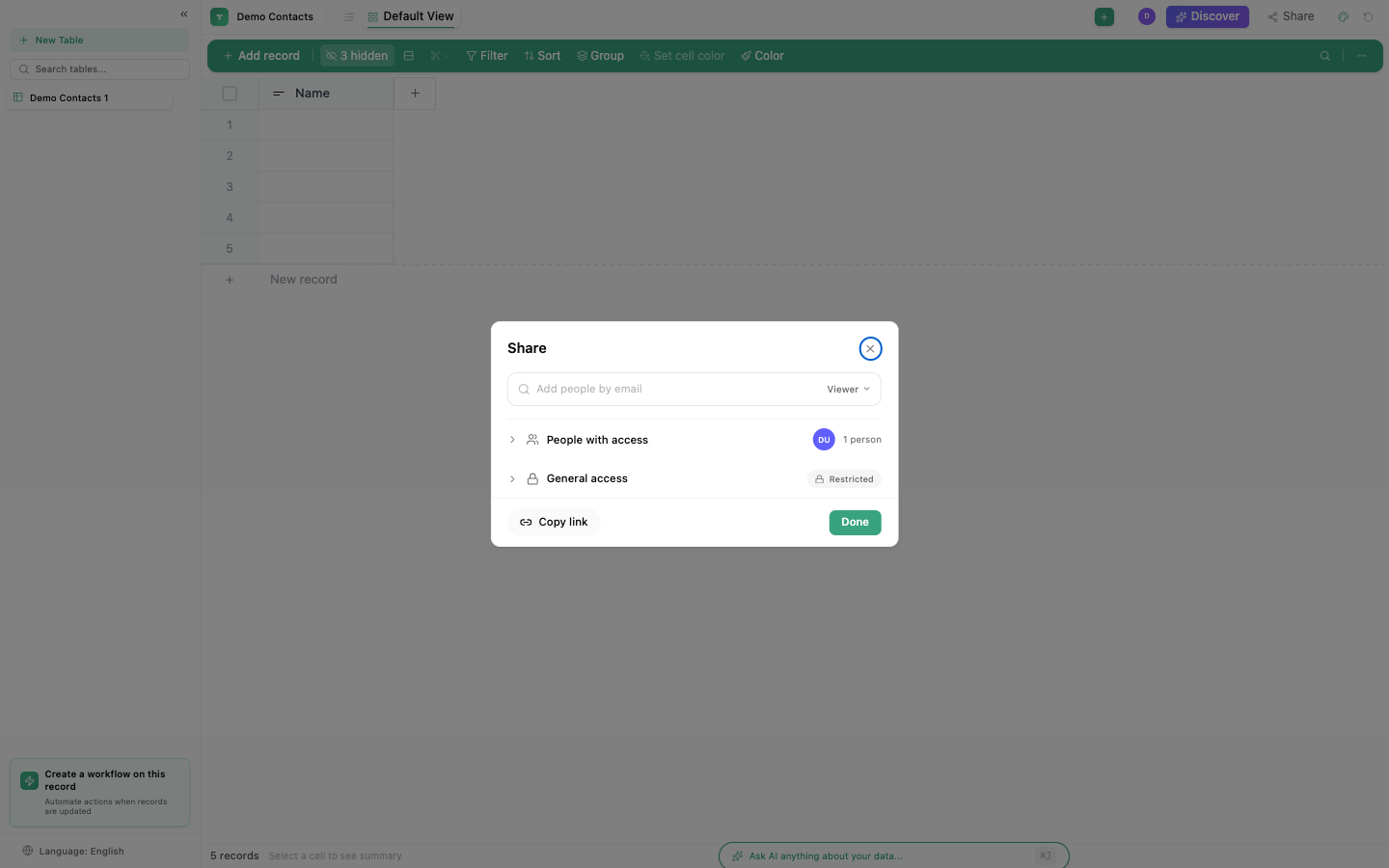
- Click Share (or the lock icon in the header)
- Choose access level:
| Setting | Who can access |
|---|---|
| Private | Only you (the creator) |
| Workspace | All workspace members with their role-based permissions |
| Specific people | Only named team members with individually assigned access |
Per-user access levels
When sharing with specific people:
| Access | Can view | Can edit rows | Can add rows | Can delete rows | Can modify columns |
|---|---|---|---|---|---|
| Viewer | Yes | No | No | No | No |
| Editor | Yes | Yes | Yes | No | No |
| Full access | Yes | Yes | Yes | Yes | Yes |
View-level permissions
Individual views can have different access from the base table:
| View setting | Effect |
|---|---|
| Personal view | Only you can see this view. Others see the table with their own views. |
| Shared view | Everyone with table access can see this view and its filters/sorts/groups. |
| Locked view | Everyone can see the view, but only you (the creator) can modify its configuration. |
This means you can:
- Create a filtered view showing only a team member's assigned rows
- Lock a "Dashboard" view so nobody changes the carefully arranged columns
- Keep draft/experimental views private
External sharing
Share a read-only view with external users (no TinyCommand account needed):
- Open the view you want to share
- Click Share → Create public link
- Copy the generated URL
External users see a read-only, filterable grid. They cannot edit data or see other views.
To revoke access, click Share → Disable public link.
Embed permissions
When embedding a table (see Embed), the embed inherits the permissions of the shared view:
| Embed type | What's visible |
|---|---|
| Public embed | Read-only grid with all rows in the shared view |
| Filtered embed | Only rows matching the view's filters |
| Interactive embed | Allows sorting and filtering but not editing |
API access
The TinyTables API respects the same permission model:
| API key type | Access |
|---|---|
| Workspace key | Full access to all tables in the workspace |
| Table key | Access to a specific table only |
| Read-only key | Can only read data, not write |
See API Keys for managing API access.
Deleting a table is permanent and affects all users who have access. Only users with Full access or Admin role can delete tables. Consider archiving instead if you may need the data later.
Use locked views for "official" dashboards and reports. Team members can still create their own personal views with different filters and sorts without affecting the locked view.