Templates
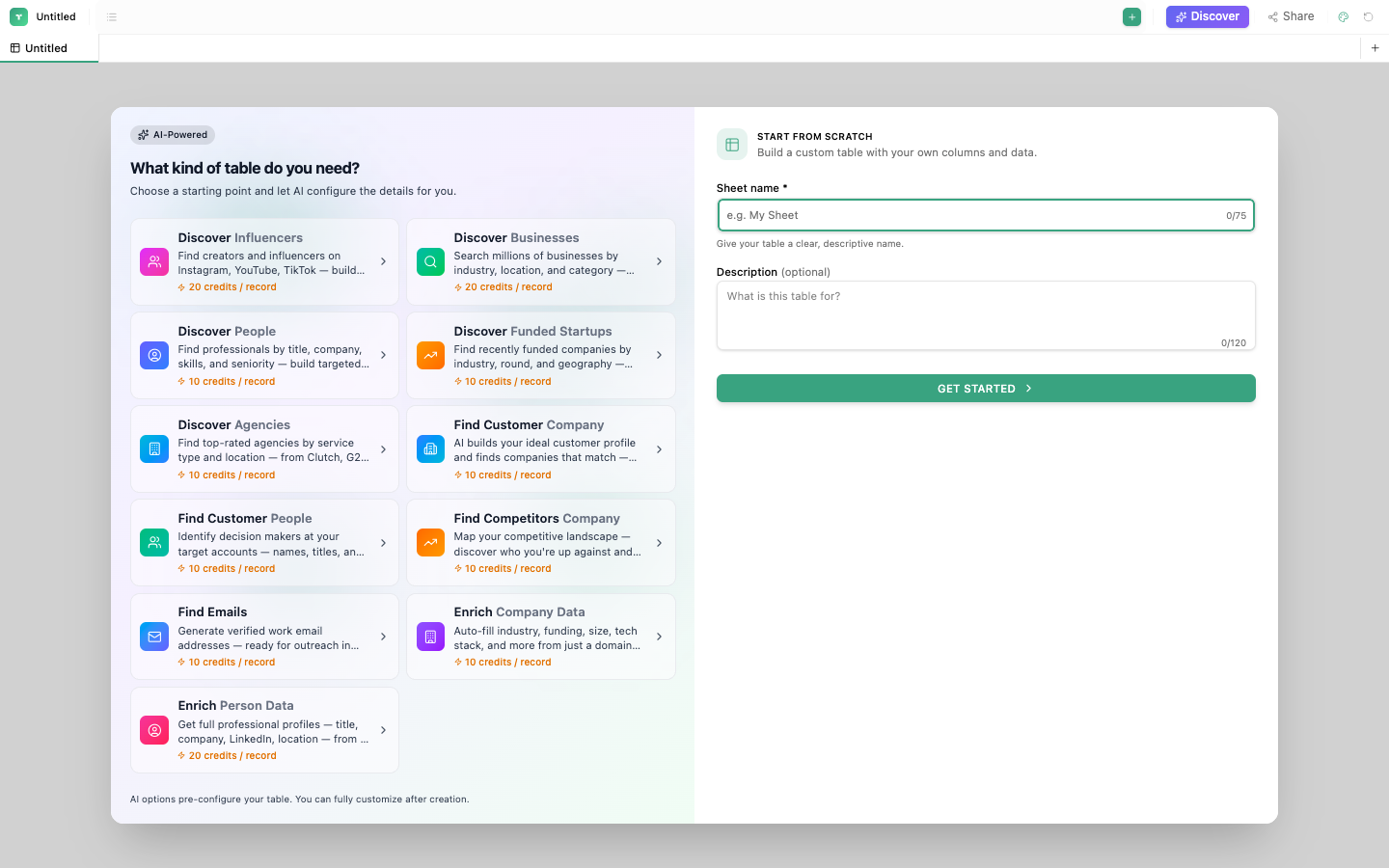
Start with a pre-built template that includes columns, views, and sample data. Customize as needed.
Available templates
CRM Contacts
| Column | Type |
|---|---|
| Name | Short Text |
| Phone | Phone Number |
| Company | Short Text |
| Status | Single Select (Lead, Qualified, Customer, Churned) |
| Last Contact | Date & Time |
| Notes | Long Text |
| Deal Value | Currency |
Includes: Grid view + Kanban view (by Status)
Sales Pipeline
| Column | Type |
|---|---|
| Deal Name | Short Text |
| Company | Short Text |
| Contact | Short Text |
| Stage | Single Select (Discovery, Proposal, Negotiation, Closed Won, Closed Lost) |
| Amount | Currency |
| Close Date | Date |
| Probability | Number (%) |
| Owner | Short Text |
Includes: Grid view + Kanban view (by Stage)
Content Calendar
| Column | Type |
|---|---|
| Title | Short Text |
| Type | Single Select (Blog, Social, Email, Video) |
| Status | Single Select (Idea, Draft, Review, Published) |
| Publish Date | Date & Time |
| Author | Short Text |
| Channel | Multi Select |
| Notes | Long Text |
Includes: Grid view + Calendar view (by Publish Date) + Kanban view (by Status)
Project Tracker
| Column | Type |
|---|---|
| Task | Short Text |
| Description | Long Text |
| Status | Single Select (To Do, In Progress, Review, Done) |
| Priority | Single Select (Low, Medium, High, Critical) |
| Assignee | Short Text |
| Start Date | Date |
| Due Date | Date |
| Estimated Hours | Number |
Includes: Grid view + Kanban view (by Status) + Gantt view (Start → Due Date)
Using a template
- Click Table in Quick Actions, or go to Assets → Tables
- Select a template from the template picker
- The table creates with all columns, views, and sample data
- Customize: rename columns, add new ones, modify views, delete sample data
Tip
Templates are starting points, not constraints. Add, remove, or modify any column. Change view configurations. The template just saves you the initial setup time.