Conditional Coloring
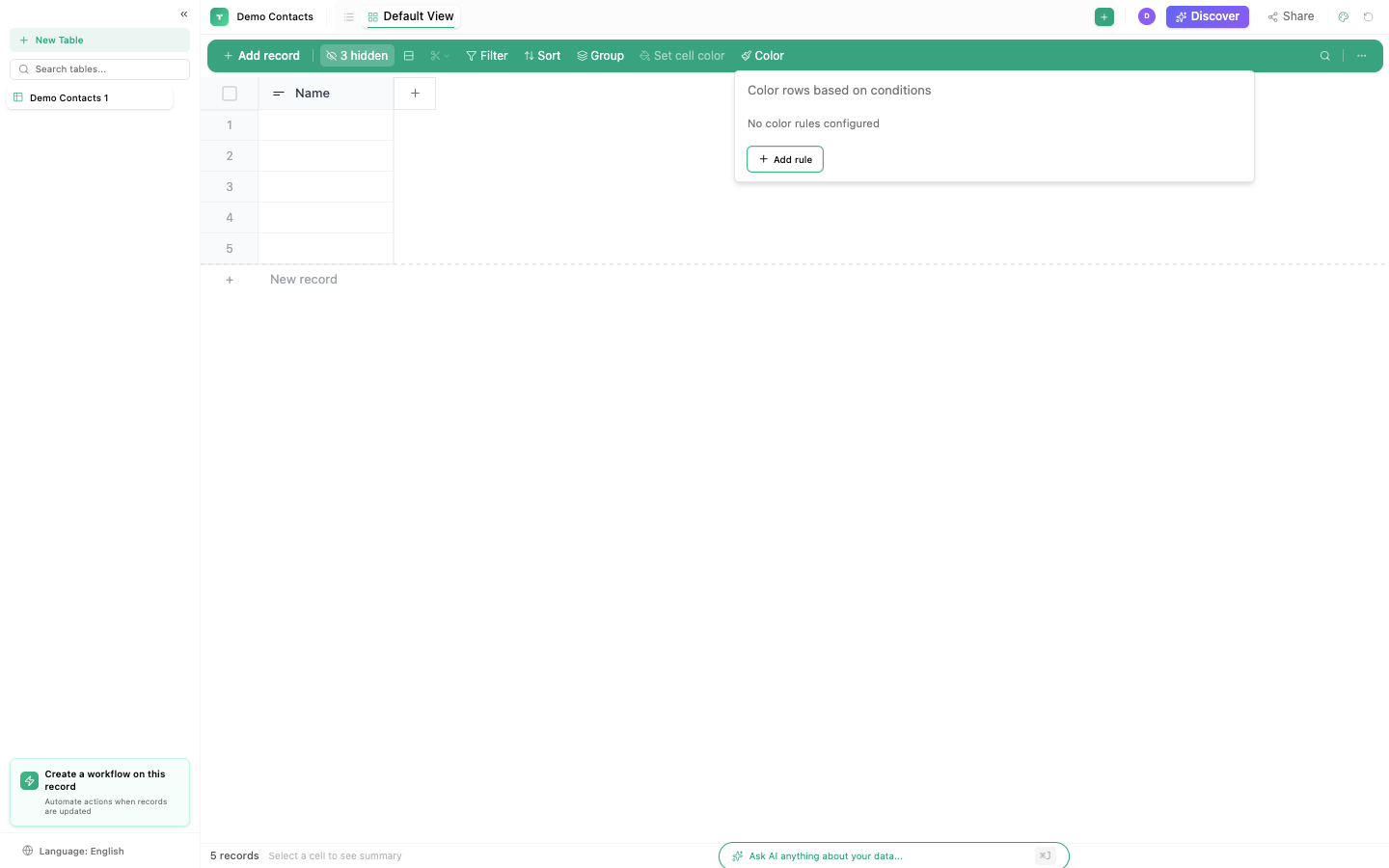
Color rows or cells based on field values. Create visual cues that make important data stand out instantly.
Setting up
- Click the color icon in the toolbar (or right-click a column → Conditional coloring)
- Add a rule:
| Setting | Description |
|---|---|
| Field | Which column to check |
| Operator | How to compare (equals, contains, greater than, etc.) |
| Value | What to compare against |
| Color | Which color to apply (8 options) |
- Records matching the rule get the color applied
Available colors
8 colors: Red, Orange, Yellow, Green, Blue, Purple, Pink, Gray
Example rules
| Rule | Color | Purpose |
|---|---|---|
| Status = "Overdue" | Red | Highlight overdue items |
| Priority = "Critical" | Red | Critical issues stand out |
| Status = "Done" | Green | Completed items |
| Score > 90 | Green | High performers |
| Score < 50 | Orange | At-risk items |
| Owner is empty | Yellow | Unassigned tasks |
| Due Date < today | Red | Past-due items |
Multiple rules
Add multiple rules; they stack. A record can match multiple rules; the last matching rule's color wins.
Per-view settings
Conditional coloring is saved per view. Different views can have different color rules: Grid view highlights overdue items, Kanban view uses default card colors.
Tip
Use a simple traffic light system: Red for problems, Yellow for warnings, Green for success. Three colors communicate status at a glance without overwhelming.