Grouping
Grouping organizes your table rows into collapsible sections based on a column's values. Group by status to see all "In Progress" tasks together, by assignee to see each person's items, or by category to organize data by type.
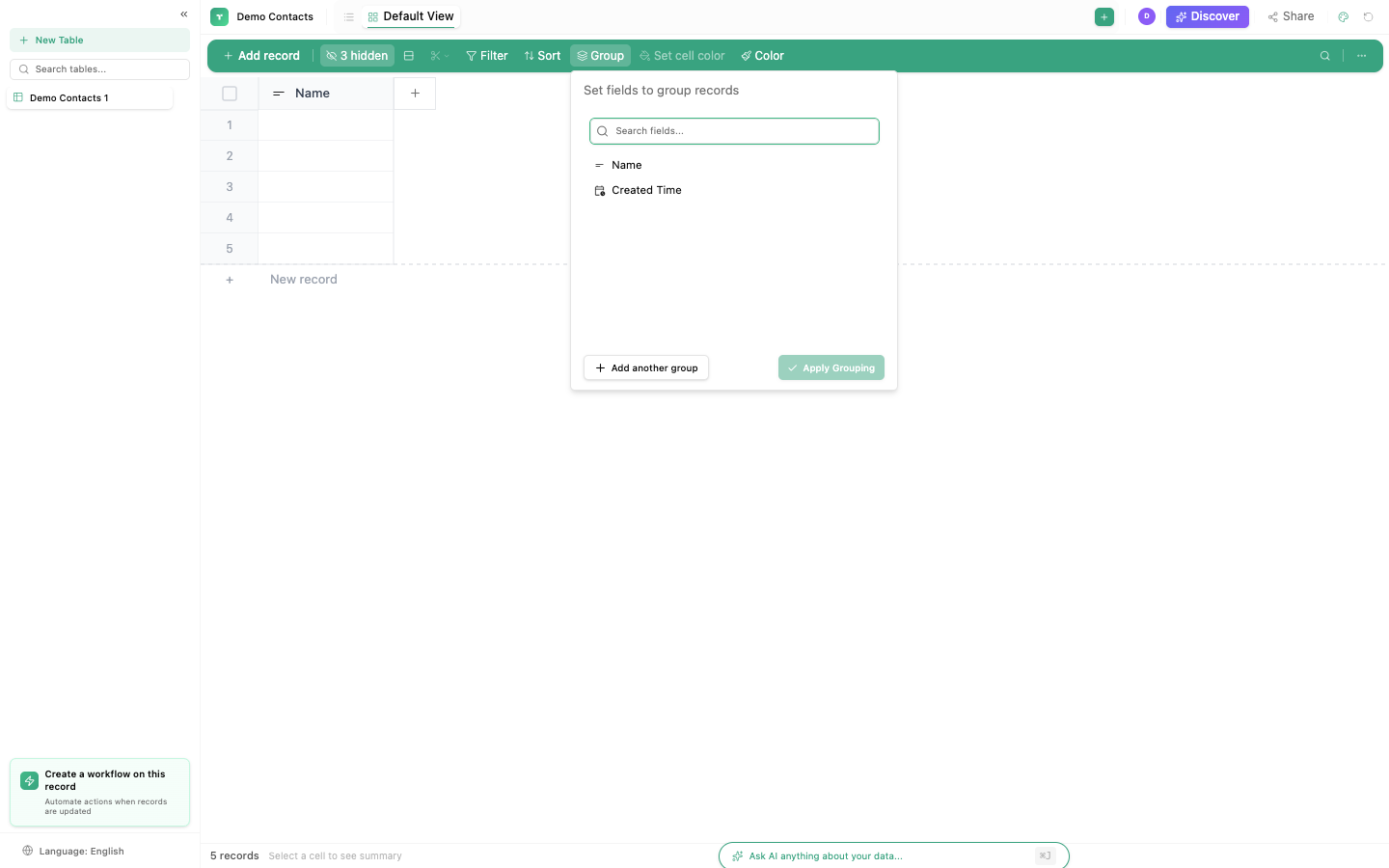
Adding a group
- Click the Group button in the toolbar (or View → Group)
- Select the column to group by
- Rows immediately reorganize into sections
Each section shows:
- The group value (e.g., "In Progress", "High Priority", "Alice")
- The count of rows in that group
- A collapse/expand arrow to hide or show the group's rows
Multi-level grouping
Stack multiple group levels for hierarchical organization:
- Click + Add group in the group panel
- Select a second column
Example: Group tasks by Status, then by Assignee
▼ In Progress (8)
    ▼ Alice (3)
        Task A, Task B, Task C
    ▼ Bob (5)
        Task D, Task E, Task F, Task G, Task H

▼ Done (12)
    ▼ Alice (7)
        ...
    ▼ Bob (5)
        ...
Which columns work best for grouping
| Column type | Grouping behavior | Best for |
|---|---|---|
| Choice / Select | Groups by each option | Status, priority, category |
| Text | Groups by exact text value | Tags, labels, department names |
| Checkbox | Groups into Checked / Unchecked | Done/not done, active/inactive |
| Date | Groups by day, week, month, or year | Timeline views, date-based reporting |
| Number | Groups by exact value (or ranges) | Scores, ratings, tiers |
| User / Assignee | Groups by team member | Workload views, task distribution |
| Linked record | Groups by the linked record | Related items |
Columns NOT recommended for grouping:
- Long text: too many unique values, each row becomes its own group
- URL: same issue, every URL is unique
- Auto-number: every value is unique, grouping is meaningless
Collapse and expand
| Action | How |
|---|---|
| Collapse one group | Click the ▼ arrow on any group header |
| Expand one group | Click the ► arrow on any collapsed group |
| Collapse all | Right-click any group header → "Collapse all groups" |
| Expand all | Right-click any group header → "Expand all groups" |
Group + Sort + Filter
Grouping works with sorting and filtering:
- Group + Sort: Rows within each group are sorted by the sort rule. Groups themselves are sorted alphabetically by default.
- Group + Filter: Only filtered rows appear. Empty groups (all rows filtered out) are hidden.
- All three: Filter first (narrow data), group second (organize), sort third (order within groups).
Saved groups
Like sorts, groups are saved per view. Each view can have its own grouping:
- "By Status" view: grouped by Status column
- "By Assignee" view: grouped by Assignee column
- "Timeline" view: grouped by Created Date (month)
Tip
Grouping + Kanban view is especially powerful. In Kanban, each group becomes a column. Switch to a Kanban view grouped by Status and you have a drag-and-drop task board.