Spacer Block
The Spacer block adds vertical space between other blocks. Use it to create breathing room, separate sections, or control the visual rhythm of your email layout.
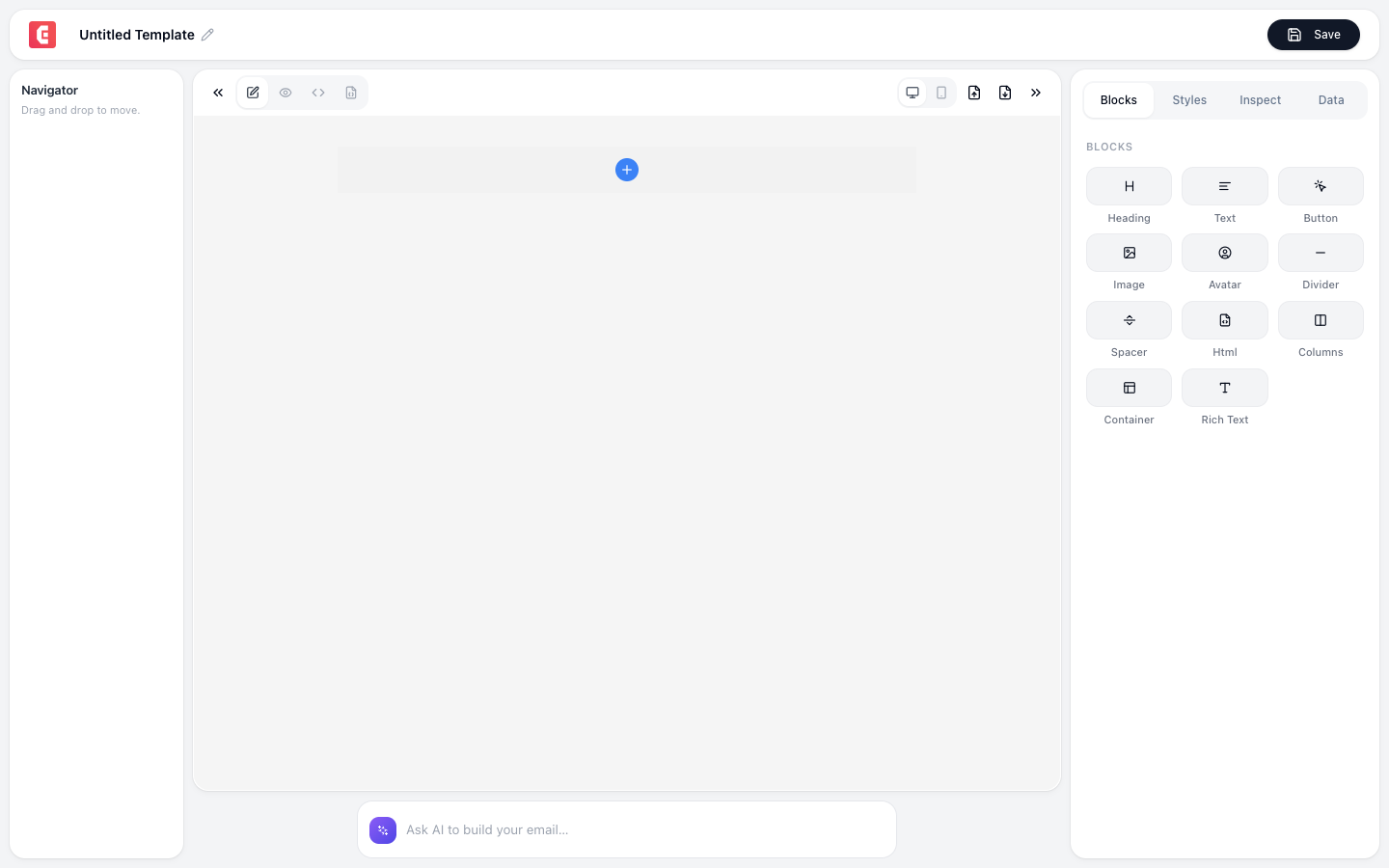
Adding a spacer
- Click + Add Block in the email builder
- Select Spacer from the layout section
- The spacer appears as a dotted-outline placeholder in the editor
Configuration
| Property | Type | Default | Description |
|---|---|---|---|
| Height | Number (px) | 20px | Vertical space in pixels |
| Background color | Color | Transparent | Fill color behind the spacer |
| Mobile height | Number (px) | Same as desktop | Different height on mobile devices |
Common heights
| Height | Use case |
|---|---|
| 8-12px | Tight spacing between related items (e.g., heading and subheading) |
| 20px | Default; standard paragraph-like gap between sections |
| 32-40px | Medium gap between distinct content sections |
| 48-64px | Large gap; visual section break without a divider |
Spacer vs. Divider
| Block | Visual | Use when |
|---|---|---|
| Spacer | Invisible, just white space | You want separation without a visible line |
| Divider | Visible horizontal line | You want a clear visual boundary between sections |
Both create vertical separation. Use spacers for subtle breathing room and dividers for explicit section breaks.
Responsive behavior
On mobile devices, large spacers can waste precious screen space. Set a smaller Mobile height to keep the email compact on small screens:
| Desktop | Mobile | Why |
|---|---|---|
| 48px | 24px | Large section breaks feel too big on narrow screens |
| 64px | 32px | Same principle: halve the desktop spacing |
| 20px | 20px | Small spacers usually work fine at the same size |
Tip
Use spacers instead of adding empty lines or <br> tags in text blocks. Spacers give you precise pixel control and render consistently across all email clients.