Raw HTML Block
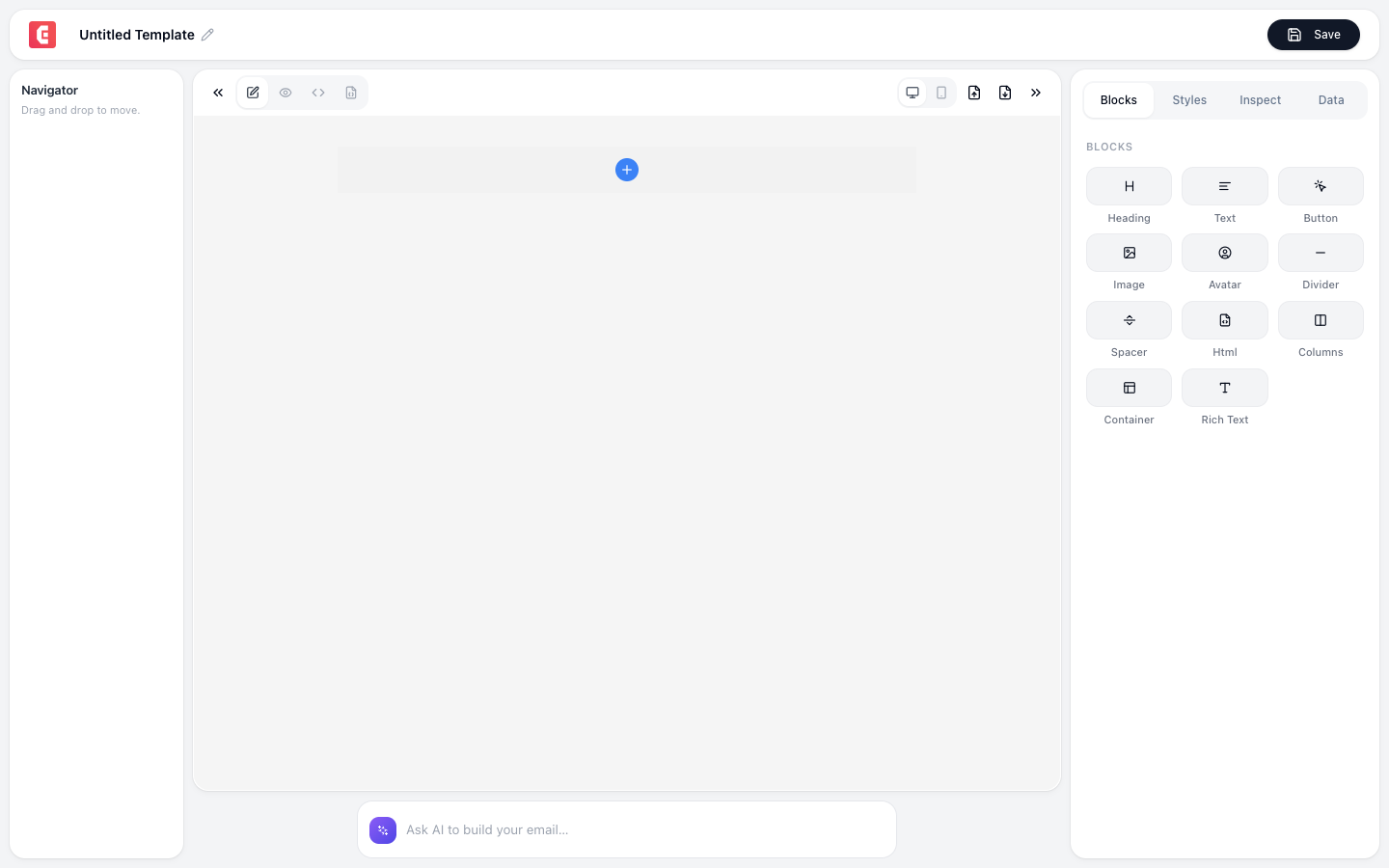
Insert raw HTML code directly into your email. Use it for advanced layouts, dynamic content, and provider-specific features that the visual editor doesn't support.
When to use
- Email provider merge tags:
{{first_name}},{{{unsubscribe_url}}} - Custom CSS: inline styles for specific rendering needs
- Embedded content: social media embeds, countdown timers
- Advanced tables: complex data layouts
- AMP email: interactive email components
Example: Merge tags
<p>Hi {{first_name}},</p>
<p>Your order #{{order_id}} has been shipped.</p>
<p><a href="{{{tracking_url}}}">Track your package</a></p>
Example: Social icons
<table align="center">
  <tr>
    <td style="padding: 0 8px;">
      <a href="https://twitter.com/yourcompany">
        <img src="https://cdn.example.com/twitter-icon.png" width="32" alt="Twitter">
      </a>
    </td>
    <td style="padding: 0 8px;">
      <a href="https://linkedin.com/company/yourcompany">
        <img src="https://cdn.example.com/linkedin-icon.png" width="32" alt="LinkedIn">
      </a>
    </td>
  </tr>
</table>
Warning
Raw HTML is not validated; incorrect HTML can break the email layout. Always preview and test after adding Raw HTML blocks. Use it as a last resort when the visual editor can't achieve what you need.
Note
Email HTML is different from web HTML. Many CSS properties don't work in email clients (especially Outlook). Use inline styles, table-based layouts, and test across clients.