Agent Versioning
Every time you deploy your agent, TinyCommand creates a versioned snapshot. Versioning lets you track changes, compare configurations, and roll back to a previous version if something goes wrong.
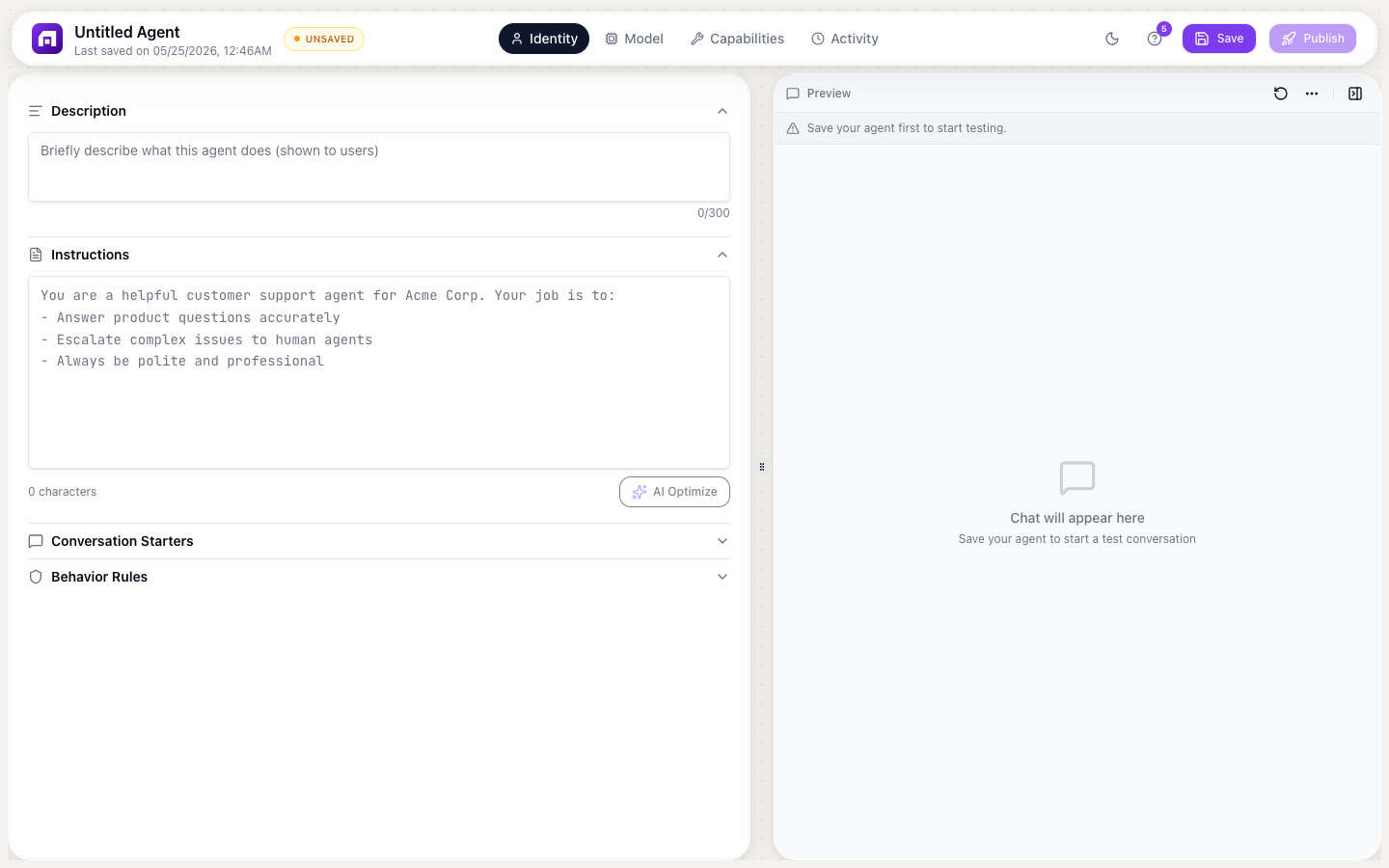
How versioning works
| Action | Creates a version? |
|---|---|
| Editing the brain (system prompt) | No, changes are drafts until deployed |
| Adding knowledge base articles | No, draft until deployed |
| Modifying capabilities | No, draft until deployed |
| Clicking Deploy | Yes, creates a new version |
Versions are only created on explicit deployment. Edits in the builder are saved as drafts that don't affect the live agent.
Viewing version history
- Open your agent
- Click Versions (clock icon) in the top bar
- The version panel shows all deployed versions
Version details
| Field | Description |
|---|---|
| Version | v1, v2, v3, etc. |
| Deployed at | Timestamp of deployment |
| Deployed by | Which team member deployed |
| Status | Active (currently live) or Archived |
| Changes | Summary of what changed from the previous version |
Comparing versions
- Select two versions in the history panel
- Click Compare
- A diff view shows:
| Section | What's compared |
|---|---|
| Brain | System prompt changes (added/removed/modified text) |
| Knowledge base | Articles added, removed, or modified |
| Capabilities | Tools enabled or disabled |
| Identity | Name, avatar, greeting changes |
| Sub-agents | Sub-agent configuration changes |
Rolling back
To revert to a previous version:
- Select the version to restore
- Click Restore
- Review the changes that will be applied
- Click Deploy to make it live
Rolling back creates a new version (restoring v2 when on v5 creates v6 with v2's configuration). No version is ever deleted.
Draft vs. live
| State | Description |
|---|---|
| Draft | Your current edits in the builder, not live |
| Live | The currently deployed version: what users interact with |
The builder always shows the draft state. The live agent uses the last deployed version. You can make as many draft changes as you want without affecting the live agent.
Discarding drafts
If your draft changes aren't working:
- Click Versions → select the current live version
- Click Reset to this version
- Your draft is replaced with the live version's configuration
Deployment environments
| Environment | Purpose | Version |
|---|---|---|
| Test | Testing in the agent testing panel | Always uses the draft |
| Staging | Testing with the embed preview | Uses the draft or a selected version |
| Production | Live agent facing real users | Uses the deployed (live) version |
Before making major changes to a working agent (rewriting the system prompt, changing capabilities), deploy the current version first. This gives you a clean rollback point.
Rolling back an agent version does not affect conversation history. Past conversations used whatever version was live at the time. Rolling back only changes the agent's behavior for future conversations.