Capabilities & Tools
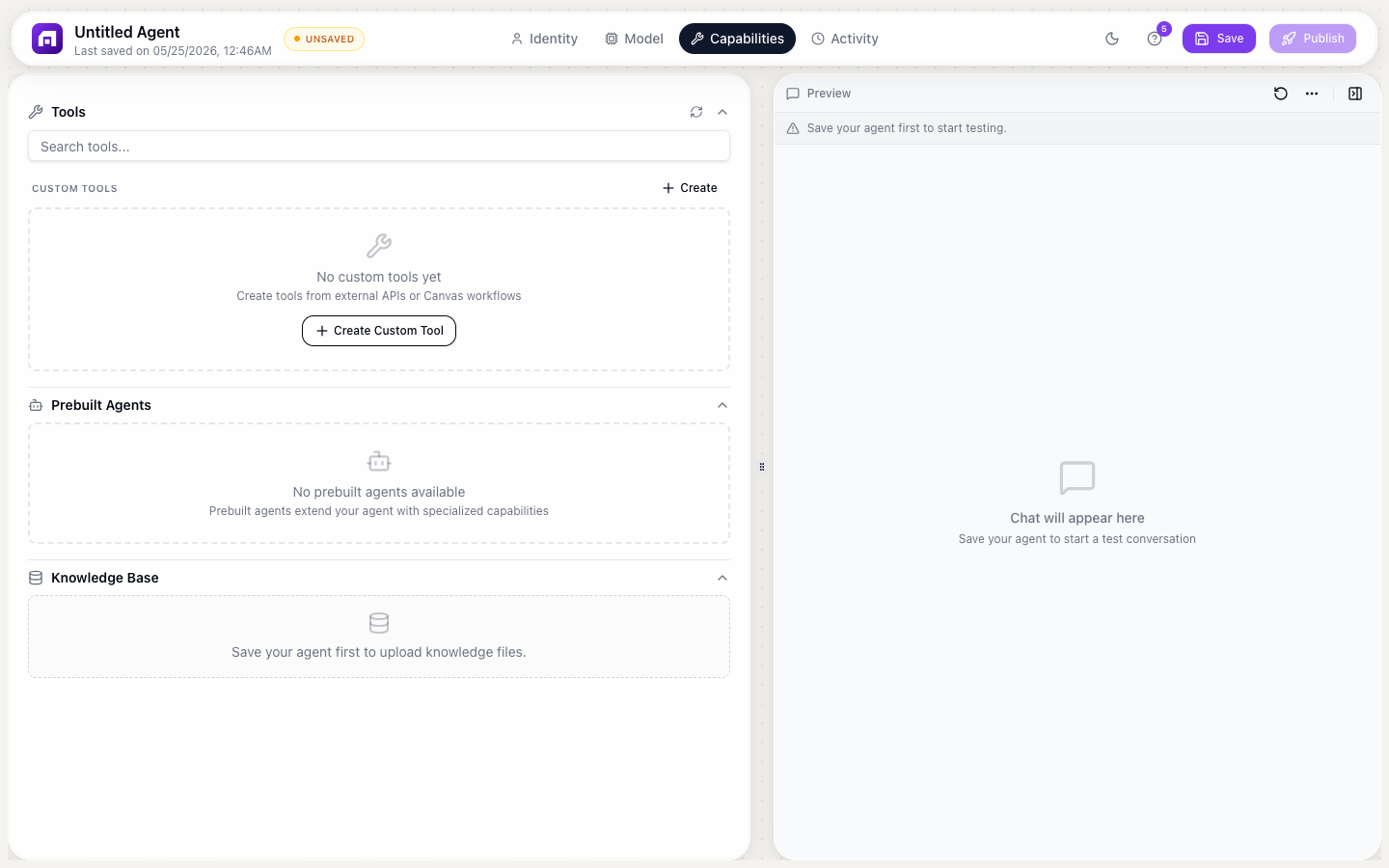
The Capabilities tab controls what your agent can do beyond generating text. Add tools, sub-agents, and knowledge bases to make it useful.
System tools
Built-in tools that come with every agent. Toggle each on/off individually. Examples include web browsing, code execution, and file processing.
Custom tools
Connect external APIs or TinyWorkflow automations as tools the agent can call during conversations.
From an API
- Click + Add custom tool
- Enter the API endpoint URL
- Define the input parameters
- Define what the tool returns
- The agent can now call this API when relevant
From a workflow
- Create a TinyWorkflow that accepts input and returns output
- In Capabilities → Custom tools → + Add custom tool
- Select "Workflow" as the source
- Choose the workflow
- The agent invokes the workflow during conversations
This is how agents take real actions: create CRM records, send emails, update databases, trigger automations.
Prebuilt sub-agents
Toggle on specialized sub-agents that extend your agent's abilities:
| Sub-agent | Category | What it does |
|---|---|---|
| Tiny Scout | Research | Research companies, prospects, and markets. Pulls data from web sources. |
| Tiny Composer | Communication | Write personalized messages, emails, and outreach sequences. |
| Tiny Search | Research | Search the web for current information on any topic. |
| Company Enricher | Enrichment | Look up company details (industry, size, location) from a domain. |
| Person Enricher | Enrichment | Find contact details (title, email, LinkedIn) from name + company. |
| Email Finder | Enrichment | Find a person's business email from name + domain. |
When a sub-agent is enabled, your agent can delegate tasks to it automatically (e.g., "Research this company" triggers Tiny Scout internally).
Knowledge Base
Upload files for the agent to reference when answering questions:
Supported file types
- PDF: documents, reports, manuals
- DOCX: Word documents
- TXT: plain text files
- CSV: structured data files
File size limit
Up to 10MB per file.
How it works
- Upload one or more files
- Wait for processing (status shows: uploading → processing → ready)
- The agent automatically searches the knowledge base when users ask questions
- Answers are grounded in your uploaded content
Best practices
- Upload your product documentation, FAQ, policies, and guides
- Keep files focused: 5 specific documents beat 1 massive dump
- Update files when content changes; the agent uses whatever is currently uploaded
- Test with real questions to verify the agent finds the right answers
Knowledge base files are processed using embeddings. Very large files (close to 10MB) may take longer to process. The agent searches semantically: it finds relevant passages, not exact keyword matches.
Combine knowledge base with behavior rules: upload your docs for answers, then add rules like "Always cite the document name when referencing uploaded files" and "If the answer isn't in the knowledge base, say 'I don't have information on that' instead of guessing."